---
title: AzureにCloud Foundry (Diegoオンリー構成)をインストール
tags: ["Azure", "BOSH", "Diego", "Cloud Foundry"]
categories: ["Dev", "PaaS", "CloudFoundry"]
date: 2016-01-21T09:47:01Z
updated: 2016-09-18T17:13:15Z
---
AzureにCloud Foundryをインストールする。情報が少ないのでメモっておく。
基本的には[https://github.com/cloudfoundry-incubator/bosh-azure-cpi-release/blob/master/docs/guidance.md](https://github.com/cloudfoundry-incubator/bosh-azure-cpi-release/blob/master/docs/guidance.md)の内容の通り。
### Azureの設定
#### Azure CLIをインストール
``` console
$ brew cask install azure-cli
```
#### Service Principalの作成
``` console
$ azure config mode arm
$ azure login
info: Executing command login
/info: To sign in, use a web browser to open the page http://aka.ms/devicelogin. Enter the code ****** to authenticate. If you're signing in as an Azure AD application, use the --username and --password parameters.
```
http://aka.ms/devicelogin でコンソールに表示されているコードを入力すればログイン成功。
``` console
$ azure account list --json
[
{
"id": "aaaaaaaa-aaaa-aaaa-aaaa-aaaaaaaaaaaa",
"name": "....",
"user": {
"name": "...",
"type": "..."
},
"tenantId": "bbbbbbbb-bbbb-bbbb-bbbb-bbbbbbbbbbbb",
"state": "...",
"isDefault": true,
"registeredProviders": [],
"environmentName": "..."
}
]
```
`id`の値(Subscription ID)を`azure account set`に渡す。`tenantId`は後で使用するのでメモすること。
``` console
$ azure account set aaaaaaaa-aaaa-aaaa-aaaa-aaaaaaaaaaaa
```
Azure Active Directory (AAD) アプリケーションを作成する。
``` console
$ azure ad app create --name "Service Principal for BOSH" --password "changeme" --home-page "http://BOSHAzureCPI" --identifier-uris "http://BOSHAzureCPI"
info: Executing command ad app create
�+ Creating application Service Principal for BOSH
data: Application Id: cccccccc-cccc-cccc-cccc-cccccccccccc
data: Application Object Id: dddddddd-dddd-dddd-dddd-dddddddddddd
data: Application Permissions:
data: claimValue: user_impersonation
data: description: Allow the application to access Service Principal for BOSH on behalf of the signed-in user.
data: directAccessGrantTypes:
data: displayName: Access Service Principal for BOSH
data: impersonationAccessGrantTypes: impersonated=User, impersonator=Application
data: isDisabled:
data: origin: Application
data: permissionId: eeeeeeee-eeee-eeee-eeee-eeeeeeeeeeee
data: resourceScopeType: Personal
data: userConsentDescription: Allow the application to access Service Principal for BOSH on your behalf.
data: userConsentDisplayName: Access Service Principal for BOSH
data: lang:
info: ad app create command OK
```
`Application Id`を`azure ad sp create`に渡してService Principalを作成する。`Application Id`は`clientId`として、後で使用するのでメモすること。
``` console
$ azure ad sp create cccccccc-cccc-cccc-cccc-cccccccccccc
info: Executing command ad sp create
+ Creating service principal for application cccccccc-cccc-cccc-cccc-cccccccccccc
data: Object Id: ffffffff-ffff-ffff-ffff-ffffffffffff
data: Display Name: Service Principal for BOSH
data: Service Principal Names:
data: cccccccc-cccc-cccc-cccc-cccccccccccc
data: http://BOSHAzureCPI
info: ad sp create command OK
```
Subscription IDを指定してRoleをアサインする。
``` console
$ azure role assignment create --spn "http://BOSHAzureCPI" -o "Contributor" --subscription aaaaaaaa-aaaa-aaaa-aaaa-aaaaaaaaaaaa
info: Executing command role assignment create
+ Finding role with specified name
|data: RoleAssignmentId : /subscriptions/aaaaaaaa-aaaa-aaaa-aaaa-aaaaaaaaaaaa/providers/Microsoft.Authorization/roleAssignments/00000000-0000-0000-0000-000000000000
data: RoleDefinitionName : Contributor
data: RoleDefinitionId : 11111111-1111-1111-1111-111111111111
data: Scope : /subscriptions/aaaaaaaa-aaaa-aaaa-aaaa-aaaaaaaaaaaa
data: Display Name : Service Principal for BOSH
data: SignInName :
data: ObjectId : ffffffff-ffff-ffff-ffff-ffffffffffff
data: ObjectType : ServicePrincipal
data:
+
info: role assignment create command OK
```
### BOSHをデプロイ
テンプレートを使用して、まずはBOSH Directorをデプロイするための踏み台サーバーを作成し、そこからBOSH Directorのインストールまで自動でやってもらう。
**⚠️テンプレートからインストールする方法はしばしば更新されていくので、この記事の内容通りに行くとは限りません⚠️**
 をクリックして、次のパラメーターには以下を設置する。下記の値は例。
``` console
VMNAME (string) bosh
ADMINUSERNAME (string) making
SSHKEYDATA (string) ~/.ssh/id_rsa.pubの内容
TENANTID (string) bbbbbbbb-bbbb-bbbb-bbbb-bbbbbbbbbbbb
CLIENTID (string) cccccccc-cccc-cccc-cccc-cccccccccccc
CLIENTSECRET (securestring) changeme
AUTODEPLOYBOSH (string) true
```
リソースグループ`azure-cf`(東日本)を作成して設定。
しばらく待つ(1時間くらい)。
をクリックして、次のパラメーターには以下を設置する。下記の値は例。
``` console
VMNAME (string) bosh
ADMINUSERNAME (string) making
SSHKEYDATA (string) ~/.ssh/id_rsa.pubの内容
TENANTID (string) bbbbbbbb-bbbb-bbbb-bbbb-bbbbbbbbbbbb
CLIENTID (string) cccccccc-cccc-cccc-cccc-cccccccccccc
CLIENTSECRET (securestring) changeme
AUTODEPLOYBOSH (string) true
```
リソースグループ`azure-cf`(東日本)を作成して設定。
しばらく待つ(1時間くらい)。
 bosh (director)のデプロイまで完了である。1時間くらいかかる。
 この時点で2つのVMができている。`VMNAME`で入力した名前のVMが踏み台サーバーで、ランダムな文字列の方がBosh Directorである。
[BOSH Components](http://bosh.io/docs/bosh-components.html)の図で言うと、次の図の2つの赤枠に相当するVMができている。

踏み台の方にログインしてBOSH DirectorをBOSH CLIで操作して、右側のVM群(ここではCloud FoundryのRuntime)をインストールすることになる。
では踏み台サーバーにsshでログインする。ユーザー名と`~/.ssh/id_rsa.pub`と対の秘密鍵(`~/.ssh/id_rsa`)でログインできる。IPアドレスはパブリックIPアドレスを参照。
この時点で2つのVMができている。`VMNAME`で入力した名前のVMが踏み台サーバーで、ランダムな文字列の方がBosh Directorである。
[BOSH Components](http://bosh.io/docs/bosh-components.html)の図で言うと、次の図の2つの赤枠に相当するVMができている。

踏み台の方にログインしてBOSH DirectorをBOSH CLIで操作して、右側のVM群(ここではCloud FoundryのRuntime)をインストールすることになる。
では踏み台サーバーにsshでログインする。ユーザー名と`~/.ssh/id_rsa.pub`と対の秘密鍵(`~/.ssh/id_rsa`)でログインできる。IPアドレスはパブリックIPアドレスを参照。
 ホームディレクトリは次のようになっている。[`deploy_bosh.sh`](https://github.com/Azure/azure-quickstart-templates/blob/master/bosh-setup/scripts/deploy_bosh.sh)でBosh Directorはデプロイ済みなので、残るはCLIを使ってCloud Foundryをデプロイするのみ。[`deploy_cloudfoundry.sh`](https://github.com/Azure/azure-quickstart-templates/blob/master/bosh-setup/scripts/deploy_cloudfoundry.sh)も用意されている。
``` console
making@bosh:~$ ll
total 6908
drwxr-xr-x 6 making making 4096 Sep 14 11:37 ./
drwxr-xr-x 3 root root 4096 Sep 14 10:00 ../
-rw-r--r-- 1 making making 220 Apr 9 2014 .bash_logout
-rw-r--r-- 1 making making 3637 Apr 9 2014 .bashrc
-r-------- 1 making root 1675 Sep 14 10:04 bosh
-rw------- 1 making making 350 Sep 14 10:43 .bosh_config
-rw-r--r-- 1 making root 23 Sep 14 10:04 BOSH_DIRECTOR_ADMIN_PASSWORD
drwxrwxr-x 4 making making 4096 Sep 14 10:07 .bosh_init/
-rw-r--r-- 1 making root 382 Sep 14 10:04 bosh.pub
-rw-rw-r-- 1 making making 1386 Sep 14 10:43 bosh-state.json
-rw-r--r-- 1 making root 4385 Sep 14 10:04 bosh.yml
drwx------ 2 making making 4096 Sep 14 11:37 .cache/
-rw-r--r-- 1 making root 4009884 Sep 14 10:04 cf-cli-installer_6.14.1_x86-64.deb
-rwxr-xr-x 1 making root 427 Sep 14 10:04 deploy_bosh.sh*
-rwxr-xr-x 1 making root 1445 Sep 14 10:04 deploy_cloudfoundry.sh*
drwxr-xr-x 2 making root 4096 Sep 14 10:43 example_manifests/
-rw-r--r-- 1 making root 88794 Sep 14 10:43 install.log
-rw-r--r-- 1 making making 675 Apr 9 2014 .profile
-rw-rw-r-- 1 making making 2887560 Sep 14 10:43 run.log
-rw-r--r-- 1 making root 2452 Sep 14 10:04 settings
drwx------ 2 making making 4096 Sep 14 10:00 .ssh/
```
### Cloud Foundryをデプロイ
Bosh CLIはインストール済みで、Bosh Directorにもログイン済みになっている。
``` console
making@bosh:~$ bosh target
Current target is https://10.0.0.4:25555 (bosh)
```
[`deploy_cloudfoundry.sh`](https://github.com/Azure/azure-quickstart-templates/blob/master/bosh-setup/scripts/deploy_cloudfoundry.sh)の中でCloud Foundryのデプロイに必要なことをやってくれているので、実行するだけ。実行時にmanifestファイルを指定する必要があるが、これも`example_manifests`フォルダ内にシングルVM用とマルチVM用それぞれ用意してある。
ここでは練習用にできるだけ本番に近いマルチVM用のmanifestを利用する。
``` console
$ ./deploy_cloudfoundry.sh example_manifests/multiple-vm-cf.yml
```
可用性は不要で1 VMでとにかくCloud Foundry on Azureを試したい場合は、シングルVM用のスクリプトを使うと良い。その場合は次
``` console
$ ./deploy_cloudfoundry.sh example_manifests/single-vm-cf.yml
```
バックエンドサービス含めるとに20個ほどVMをつくることになるため、サポートに問い合わせて制限を30-50個くらいに上げてもらうのがよい。
ポータルから「ヘルプとサポート」→「新しいサポートリクエスト」でリクエストする。自分の場合は1日くらいかかったので、早めにやっておくと良い。

デプロイが終わったら(1時間くらい)、`bosh vms`でデプロイされたVMを確認すると次のような結果になるはず。cellなどDiegoコンポーネントを含む17VMs。ログは[こちら](https://gist.github.com/making/0ce7a46d0e9fa1bdcacec6ea624f3084)。
``` console
$ bosh vms
Acting as user 'admin' on 'bosh'
Deployment `multiple-cf-on-azure'
Director task 14
Task 14 done
+---------------------------------------------------------------------------+---------+-----+-------------+---------------+
| VM | State | AZ | VM Type | IPs |
+---------------------------------------------------------------------------+---------+-----+-------------+---------------+
| access_z1/0 (74a1ab9d-32c9-46aa-9903-1430ed474249) | running | n/a | resource_z1 | 10.0.16.109 |
| api_z1/0 (47cffc4f-e68f-450f-ad55-e016b3ec7e01) | running | n/a | resource_z1 | 10.0.16.102 |
| brain_z1/0 (6a0ed991-b9ad-4743-b5c6-60eef37c1a51) | running | n/a | resource_z1 | 10.0.16.106 |
| cc_bridge_z1/0 (7001782d-97d4-48e0-a288-b49fe99e907e) | running | n/a | resource_z1 | 10.0.16.108 |
| cell_z1/0 (46f83357-a890-463d-9f34-ff6e37082a32) | running | n/a | resource_z1 | 10.0.16.107 |
| consul_z1/0 (eb86b16c-aee0-4711-8a4d-c1046e666d43) | running | n/a | resource_z1 | 10.0.16.16 |
| database_z1/0 (e42d51b8-2509-4aa6-a5de-c26ff161746c) | running | n/a | resource_z1 | 10.0.16.105 |
| doppler_z1/0 (facd13de-9e7e-4919-a21f-f8c25dcb76e0) | running | n/a | resource_z1 | 10.0.16.103 |
| etcd_z1/0 (0b0d0610-35e9-4a18-8861-3e5bd6c2bbb8) | running | n/a | resource_z1 | 10.0.16.14 |
| ha_proxy_z1/0 (b0e54bf1-20e8-4861-8ec6-3897a5e04177) | running | n/a | resource_z1 | 10.0.16.4 |
| | | | | 13.78.121.100 |
| loggregator_trafficcontroller_z1/0 (89e9789a-cf8d-481c-b4bd-e71de58947a3) | running | n/a | resource_z1 | 10.0.16.104 |
| nats_z1/0 (f7bfc395-4168-41ac-b40c-61810927baff) | running | n/a | resource_z1 | 10.0.16.13 |
| nfs_z1/0 (ab811af8-9e12-4f03-bede-cb6488ab13be) | running | n/a | resource_z1 | 10.0.16.15 |
| postgres_z1/0 (e0da4072-bff1-42a5-b6db-2d4e6876810a) | running | n/a | resource_z1 | 10.0.16.11 |
| route_emitter_z1/0 (dff8bc35-5020-4c62-a3b9-387d719e2546) | running | n/a | resource_z1 | 10.0.16.110 |
| router_z1/0 (50ec2d18-6971-49d2-bd14-d2b6946b18f0) | running | n/a | resource_z1 | 10.0.16.12 |
| uaa_z1/0 (f04a9a3d-3b70-4fbc-b52d-979f9064d905) | running | n/a | resource_z1 | 10.0.16.101 |
+---------------------------------------------------------------------------+---------+-----+-------------+---------------+
VMs total: 17
```
ホームディレクトリは次のようになっている。[`deploy_bosh.sh`](https://github.com/Azure/azure-quickstart-templates/blob/master/bosh-setup/scripts/deploy_bosh.sh)でBosh Directorはデプロイ済みなので、残るはCLIを使ってCloud Foundryをデプロイするのみ。[`deploy_cloudfoundry.sh`](https://github.com/Azure/azure-quickstart-templates/blob/master/bosh-setup/scripts/deploy_cloudfoundry.sh)も用意されている。
``` console
making@bosh:~$ ll
total 6908
drwxr-xr-x 6 making making 4096 Sep 14 11:37 ./
drwxr-xr-x 3 root root 4096 Sep 14 10:00 ../
-rw-r--r-- 1 making making 220 Apr 9 2014 .bash_logout
-rw-r--r-- 1 making making 3637 Apr 9 2014 .bashrc
-r-------- 1 making root 1675 Sep 14 10:04 bosh
-rw------- 1 making making 350 Sep 14 10:43 .bosh_config
-rw-r--r-- 1 making root 23 Sep 14 10:04 BOSH_DIRECTOR_ADMIN_PASSWORD
drwxrwxr-x 4 making making 4096 Sep 14 10:07 .bosh_init/
-rw-r--r-- 1 making root 382 Sep 14 10:04 bosh.pub
-rw-rw-r-- 1 making making 1386 Sep 14 10:43 bosh-state.json
-rw-r--r-- 1 making root 4385 Sep 14 10:04 bosh.yml
drwx------ 2 making making 4096 Sep 14 11:37 .cache/
-rw-r--r-- 1 making root 4009884 Sep 14 10:04 cf-cli-installer_6.14.1_x86-64.deb
-rwxr-xr-x 1 making root 427 Sep 14 10:04 deploy_bosh.sh*
-rwxr-xr-x 1 making root 1445 Sep 14 10:04 deploy_cloudfoundry.sh*
drwxr-xr-x 2 making root 4096 Sep 14 10:43 example_manifests/
-rw-r--r-- 1 making root 88794 Sep 14 10:43 install.log
-rw-r--r-- 1 making making 675 Apr 9 2014 .profile
-rw-rw-r-- 1 making making 2887560 Sep 14 10:43 run.log
-rw-r--r-- 1 making root 2452 Sep 14 10:04 settings
drwx------ 2 making making 4096 Sep 14 10:00 .ssh/
```
### Cloud Foundryをデプロイ
Bosh CLIはインストール済みで、Bosh Directorにもログイン済みになっている。
``` console
making@bosh:~$ bosh target
Current target is https://10.0.0.4:25555 (bosh)
```
[`deploy_cloudfoundry.sh`](https://github.com/Azure/azure-quickstart-templates/blob/master/bosh-setup/scripts/deploy_cloudfoundry.sh)の中でCloud Foundryのデプロイに必要なことをやってくれているので、実行するだけ。実行時にmanifestファイルを指定する必要があるが、これも`example_manifests`フォルダ内にシングルVM用とマルチVM用それぞれ用意してある。
ここでは練習用にできるだけ本番に近いマルチVM用のmanifestを利用する。
``` console
$ ./deploy_cloudfoundry.sh example_manifests/multiple-vm-cf.yml
```
可用性は不要で1 VMでとにかくCloud Foundry on Azureを試したい場合は、シングルVM用のスクリプトを使うと良い。その場合は次
``` console
$ ./deploy_cloudfoundry.sh example_manifests/single-vm-cf.yml
```
バックエンドサービス含めるとに20個ほどVMをつくることになるため、サポートに問い合わせて制限を30-50個くらいに上げてもらうのがよい。
ポータルから「ヘルプとサポート」→「新しいサポートリクエスト」でリクエストする。自分の場合は1日くらいかかったので、早めにやっておくと良い。

デプロイが終わったら(1時間くらい)、`bosh vms`でデプロイされたVMを確認すると次のような結果になるはず。cellなどDiegoコンポーネントを含む17VMs。ログは[こちら](https://gist.github.com/making/0ce7a46d0e9fa1bdcacec6ea624f3084)。
``` console
$ bosh vms
Acting as user 'admin' on 'bosh'
Deployment `multiple-cf-on-azure'
Director task 14
Task 14 done
+---------------------------------------------------------------------------+---------+-----+-------------+---------------+
| VM | State | AZ | VM Type | IPs |
+---------------------------------------------------------------------------+---------+-----+-------------+---------------+
| access_z1/0 (74a1ab9d-32c9-46aa-9903-1430ed474249) | running | n/a | resource_z1 | 10.0.16.109 |
| api_z1/0 (47cffc4f-e68f-450f-ad55-e016b3ec7e01) | running | n/a | resource_z1 | 10.0.16.102 |
| brain_z1/0 (6a0ed991-b9ad-4743-b5c6-60eef37c1a51) | running | n/a | resource_z1 | 10.0.16.106 |
| cc_bridge_z1/0 (7001782d-97d4-48e0-a288-b49fe99e907e) | running | n/a | resource_z1 | 10.0.16.108 |
| cell_z1/0 (46f83357-a890-463d-9f34-ff6e37082a32) | running | n/a | resource_z1 | 10.0.16.107 |
| consul_z1/0 (eb86b16c-aee0-4711-8a4d-c1046e666d43) | running | n/a | resource_z1 | 10.0.16.16 |
| database_z1/0 (e42d51b8-2509-4aa6-a5de-c26ff161746c) | running | n/a | resource_z1 | 10.0.16.105 |
| doppler_z1/0 (facd13de-9e7e-4919-a21f-f8c25dcb76e0) | running | n/a | resource_z1 | 10.0.16.103 |
| etcd_z1/0 (0b0d0610-35e9-4a18-8861-3e5bd6c2bbb8) | running | n/a | resource_z1 | 10.0.16.14 |
| ha_proxy_z1/0 (b0e54bf1-20e8-4861-8ec6-3897a5e04177) | running | n/a | resource_z1 | 10.0.16.4 |
| | | | | 13.78.121.100 |
| loggregator_trafficcontroller_z1/0 (89e9789a-cf8d-481c-b4bd-e71de58947a3) | running | n/a | resource_z1 | 10.0.16.104 |
| nats_z1/0 (f7bfc395-4168-41ac-b40c-61810927baff) | running | n/a | resource_z1 | 10.0.16.13 |
| nfs_z1/0 (ab811af8-9e12-4f03-bede-cb6488ab13be) | running | n/a | resource_z1 | 10.0.16.15 |
| postgres_z1/0 (e0da4072-bff1-42a5-b6db-2d4e6876810a) | running | n/a | resource_z1 | 10.0.16.11 |
| route_emitter_z1/0 (dff8bc35-5020-4c62-a3b9-387d719e2546) | running | n/a | resource_z1 | 10.0.16.110 |
| router_z1/0 (50ec2d18-6971-49d2-bd14-d2b6946b18f0) | running | n/a | resource_z1 | 10.0.16.12 |
| uaa_z1/0 (f04a9a3d-3b70-4fbc-b52d-979f9064d905) | running | n/a | resource_z1 | 10.0.16.101 |
+---------------------------------------------------------------------------+---------+-----+-------------+---------------+
VMs total: 17
```
 このままだとどれがどのVMかわからないので、列の選択で次の項目を選択すると良い。
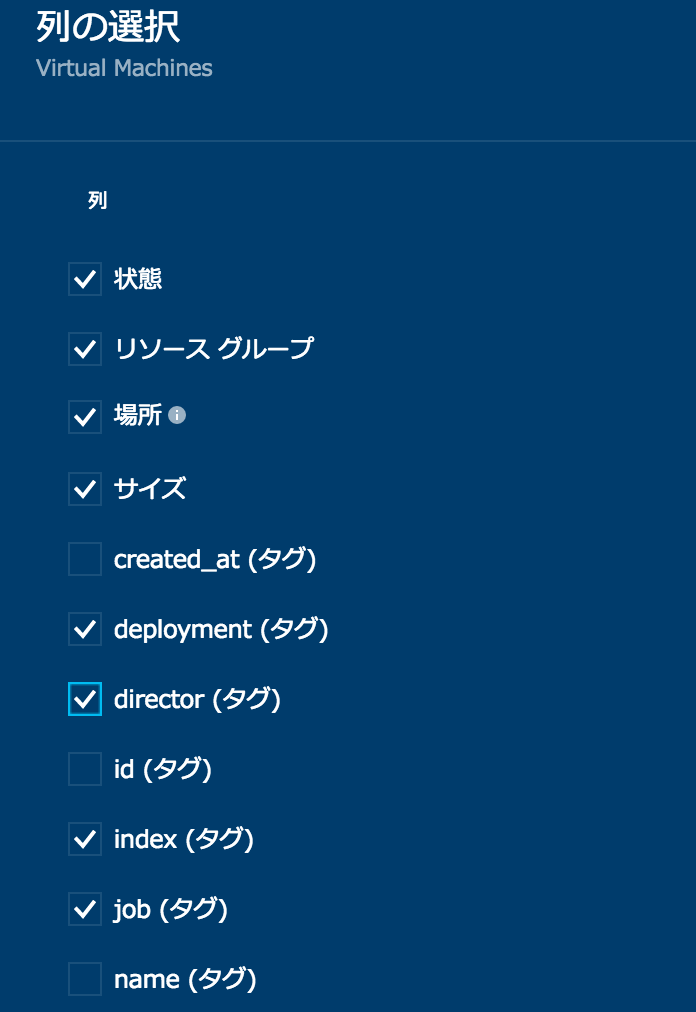 JOB列がコンポーネントの名前。
 HA ProxyにパブリックIPが設定されている。manifestファイルをgrepすると以下のようにAPI URLとadminユーザーのパスワードがわかる。
``` bash
$ grep api example_manifests/multiple-vm-cf.yml
- name: api_z1
- name: api
- "api.13.78.121.100.xip.io"
api: api.13.78.121.100.xip.io
api: api.13.78.121.100.xip.io
api: api.13.78.121.100.xip.io
bulk_api_password: c1oudc0w
internal_api_password: c1oudc0w
srv_api_uri: https://api.13.78.121.100.xip.io
external_host: api
02aN4KfOuGUiC3ivjaY3RrhcvybWGNhp8PK+hUYWnN8e6lyPDTo6kSgtapiSfCa3
capi:
base_url: https://api.13.78.121.100.xip.io
base_url: https://api.13.78.121.100.xip.io
base_url: https://api.13.78.121.100.xip.io
base_url: https://api.13.78.121.100.xip.io
```
後はインターネット経由で`cf login`できる 🙌
``` bash
$ cf login -a https://api.13.78.121.100.xip.io --skip-ssl-validation -u admin -p c1oudc0w
$ cf create-space demo
$ cf target -s demo
$ cd /tmp
$ git clone https://github.com/making/hacker-tackle-demo.git
$ cd hacker-tackle-demo/hacker-tackle
$ cf push
$ curl -i hacker-tackle.13.78.121.100.xip.io
HTTP/1.1 200 OK
Content-Length: 1234
Content-Type: text/plain; charset=utf-8
Date: Wed, 14 Sep 2016 13:56:15 GMT
X-Vcap-Request-Id: 804a5469-de4d-4c2d-7e91-e850acf04926
0️⃣ 0️⃣ 0️⃣ 0️⃣ 0️⃣ 0️⃣ 0️⃣ 0️⃣ 0️⃣ 0️⃣ 0️⃣ 0️⃣ 0️⃣ 0️⃣ 0️⃣
0️⃣ 0️⃣ 0️⃣ 0️⃣ 0️⃣ 0️⃣ 0️⃣ 0️⃣ 0️⃣ 0️⃣
0️⃣ 0️⃣ 0️⃣ 0️⃣ 0️⃣ 0️⃣ 0️⃣ 0️⃣ 0️⃣ 0️⃣ 0️⃣ 0️⃣ 0️⃣ 0️⃣
0️⃣ 0️⃣ 0️⃣ 0️⃣ 0️⃣ 0️⃣ 0️⃣ 0️⃣ 0️⃣ 0️⃣
0️⃣ 0️⃣ 0️⃣ 0️⃣ 0️⃣ 0️⃣ 0️⃣ 0️⃣ 0️⃣ 0️⃣ 0️⃣ 0️⃣ 0️⃣ 0️⃣
0️⃣ 0️⃣ 0️⃣ 0️⃣ 0️⃣ 0️⃣ 0️⃣ 0️⃣ 0️⃣ 0️⃣ 0️⃣ 0️⃣ 0️⃣ 0️⃣ 0️⃣
0️⃣ 0️⃣ 0️⃣ 0️⃣ 0️⃣ 0️⃣ 0️⃣ 0️⃣
0️⃣ 0️⃣ 0️⃣ 0️⃣ 0️⃣ 0️⃣ 0️⃣ 0️⃣ 0️⃣ 0️⃣
0️⃣ 0️⃣ 0️⃣ 0️⃣ 0️⃣ 0️⃣ 0️⃣ 0️⃣
0️⃣ 0️⃣ 0️⃣ 0️⃣ 0️⃣ 0️⃣ 0️⃣ 0️⃣ 0️⃣ 0️⃣ 0️⃣ 0️⃣ 0️⃣ 0️⃣
```
xip.ioはよくダウンするため`curl: (6) Could not resolve host: xxx.13.78.121.100.xip.io`というエラーが出たら、何度かリトライすると良い。
記事執筆時点でcf-release [v238](https://github.com/cloudfoundry/cf-release/releases/tag/v238) (API version: 2.57.0)が使える。
アプリのデプロイは[この記事](/entries/361)と同じ要領でOK。
ちなみにシングルVMのmanifestを使った場合はこんな感じ
``` console
$ bosh vms
Acting as user 'admin' on 'bosh'
Deployment `single-vm-cf-on-azure'
Director task 72
Task 72 done
+------------------------------------------------+---------+-----+-------------+---------------+
| VM | State | AZ | VM Type | IPs |
+------------------------------------------------+---------+-----+-------------+---------------+
| cf_z1/0 (5662378e-b48c-4ee9-9ac0-f68dfea9d04a) | running | n/a | resource_z1 | 10.0.16.4 |
| | | | | 13.78.121.100 |
+------------------------------------------------+---------+-----+-------------+---------------+
VMs total: 1
```
HA ProxyにパブリックIPが設定されている。manifestファイルをgrepすると以下のようにAPI URLとadminユーザーのパスワードがわかる。
``` bash
$ grep api example_manifests/multiple-vm-cf.yml
- name: api_z1
- name: api
- "api.13.78.121.100.xip.io"
api: api.13.78.121.100.xip.io
api: api.13.78.121.100.xip.io
api: api.13.78.121.100.xip.io
bulk_api_password: c1oudc0w
internal_api_password: c1oudc0w
srv_api_uri: https://api.13.78.121.100.xip.io
external_host: api
02aN4KfOuGUiC3ivjaY3RrhcvybWGNhp8PK+hUYWnN8e6lyPDTo6kSgtapiSfCa3
capi:
base_url: https://api.13.78.121.100.xip.io
base_url: https://api.13.78.121.100.xip.io
base_url: https://api.13.78.121.100.xip.io
base_url: https://api.13.78.121.100.xip.io
```
後はインターネット経由で`cf login`できる 🙌
``` bash
$ cf login -a https://api.13.78.121.100.xip.io --skip-ssl-validation -u admin -p c1oudc0w
$ cf create-space demo
$ cf target -s demo
$ cd /tmp
$ git clone https://github.com/making/hacker-tackle-demo.git
$ cd hacker-tackle-demo/hacker-tackle
$ cf push
$ curl -i hacker-tackle.13.78.121.100.xip.io
HTTP/1.1 200 OK
Content-Length: 1234
Content-Type: text/plain; charset=utf-8
Date: Wed, 14 Sep 2016 13:56:15 GMT
X-Vcap-Request-Id: 804a5469-de4d-4c2d-7e91-e850acf04926
0️⃣ 0️⃣ 0️⃣ 0️⃣ 0️⃣ 0️⃣ 0️⃣ 0️⃣ 0️⃣ 0️⃣ 0️⃣ 0️⃣ 0️⃣ 0️⃣ 0️⃣
0️⃣ 0️⃣ 0️⃣ 0️⃣ 0️⃣ 0️⃣ 0️⃣ 0️⃣ 0️⃣ 0️⃣
0️⃣ 0️⃣ 0️⃣ 0️⃣ 0️⃣ 0️⃣ 0️⃣ 0️⃣ 0️⃣ 0️⃣ 0️⃣ 0️⃣ 0️⃣ 0️⃣
0️⃣ 0️⃣ 0️⃣ 0️⃣ 0️⃣ 0️⃣ 0️⃣ 0️⃣ 0️⃣ 0️⃣
0️⃣ 0️⃣ 0️⃣ 0️⃣ 0️⃣ 0️⃣ 0️⃣ 0️⃣ 0️⃣ 0️⃣ 0️⃣ 0️⃣ 0️⃣ 0️⃣
0️⃣ 0️⃣ 0️⃣ 0️⃣ 0️⃣ 0️⃣ 0️⃣ 0️⃣ 0️⃣ 0️⃣ 0️⃣ 0️⃣ 0️⃣ 0️⃣ 0️⃣
0️⃣ 0️⃣ 0️⃣ 0️⃣ 0️⃣ 0️⃣ 0️⃣ 0️⃣
0️⃣ 0️⃣ 0️⃣ 0️⃣ 0️⃣ 0️⃣ 0️⃣ 0️⃣ 0️⃣ 0️⃣
0️⃣ 0️⃣ 0️⃣ 0️⃣ 0️⃣ 0️⃣ 0️⃣ 0️⃣
0️⃣ 0️⃣ 0️⃣ 0️⃣ 0️⃣ 0️⃣ 0️⃣ 0️⃣ 0️⃣ 0️⃣ 0️⃣ 0️⃣ 0️⃣ 0️⃣
```
xip.ioはよくダウンするため`curl: (6) Could not resolve host: xxx.13.78.121.100.xip.io`というエラーが出たら、何度かリトライすると良い。
記事執筆時点でcf-release [v238](https://github.com/cloudfoundry/cf-release/releases/tag/v238) (API version: 2.57.0)が使える。
アプリのデプロイは[この記事](/entries/361)と同じ要領でOK。
ちなみにシングルVMのmanifestを使った場合はこんな感じ
``` console
$ bosh vms
Acting as user 'admin' on 'bosh'
Deployment `single-vm-cf-on-azure'
Director task 72
Task 72 done
+------------------------------------------------+---------+-----+-------------+---------------+
| VM | State | AZ | VM Type | IPs |
+------------------------------------------------+---------+-----+-------------+---------------+
| cf_z1/0 (5662378e-b48c-4ee9-9ac0-f68dfea9d04a) | running | n/a | resource_z1 | 10.0.16.4 |
| | | | | 13.78.121.100 |
+------------------------------------------------+---------+-----+-------------+---------------+
VMs total: 1
```
 ### 独自ドメインを使う
xip.ioは流石にないので、独自ドメインを使う方法も紹介する。基本的には`*.ドメイン名`をロードバランサーに向ければ良い。
次の図はCloudFlareのDNSに`*.azurecf.ik.am`を設定する例。
### 独自ドメインを使う
xip.ioは流石にないので、独自ドメインを使う方法も紹介する。基本的には`*.ドメイン名`をロードバランサーに向ければ良い。
次の図はCloudFlareのDNSに`*.azurecf.ik.am`を設定する例。
 `~/example_manifests/multiple-vm-cf.yml `中の`13.78.121.100.xip.io`を`azurecf.ik.am`に置換して`bosh -n deploy`。
アップデートが完了したら`cf login -a https://api.azurecf.ik.am --skip-ssl-validation -u admin -p c1oudc0w`でログインできるようになる。
最初にxip.ioを使ってインストールしているとdomainが登録済み担っている。
``` console
$ cf domains
Getting domains in org default_organization as admin...
name status
13.78.121.100.xip.io shared
azurecf.ik.am shared
```
不要なので削除。
``` console
$ cf delete-shared-domain -f 13.78.121.100.xip.io
Deleting domain 13.78.121.100.xip.io as admin...
OK
```
今後、`cf push`すれば`azurecf.ik.am`が使えるようになる。
``` console
$ cf push
Using manifest file /tmp/hacker-tackle-demo/hacker-tackle/manifest.yml
Updating app hacker-tackle in org default_organization / space demo as admin...
OK
Creating route hacker-tackle.azurecf.ik.am...
OK
Binding hacker-tackle.azurecf.ik.am to hacker-tackle...
OK
Uploading hacker-tackle...
Uploading app files from: /tmp/hacker-tackle-demo/hacker-tackle
Uploading 1.9K, 2 files
Done uploading
OK
Starting app hacker-tackle in org default_organization / space demo as admin...
Creating container
Successfully created container
Downloading app package...
Downloaded app package (979B)
Staging...
-------> Buildpack version 1.7.12
https://buildpacks.cloudfoundry.org/concourse-binaries/godep/godep-v74-linux-x64.tgz
https://buildpacks.cloudfoundry.org/concourse-binaries/glide/glide-v0.11.1-linux-x64.tgz
-----> Installing go1.7... done
Downloaded [https://buildpacks.cloudfoundry.org/concourse-binaries/go/go1.7.linux-amd64.tar.gz]
!! Installing package '.' (default)
-----> Fetching any unsaved dependencies (glide install)
[INFO] Lock file (glide.lock) does not exist. Performing update.
[INFO] Downloading dependencies. Please wait...
[INFO] No references set.
[INFO] Resolving imports
[INFO] Downloading dependencies. Please wait...
[INFO] Setting references for remaining imports
[INFO] No references set.
[INFO] Project relies on 0 dependencies.
-----> Running: go install -v -tags cloudfoundry .
github.com/making/hacker-tackle-demo/hacker-tackle
Exit status 0
Staging complete
Uploading droplet, build artifacts cache...
Uploading build artifacts cache...
Uploading droplet...
Uploaded build artifacts cache (66.5M)
Uploaded droplet (1.8M)
Uploading complete
1 of 1 instances running
App started
OK
App hacker-tackle was started using this command `hacker-tackle`
Showing health and status for app hacker-tackle in org default_organization / space demo as admin...
OK
requested state: started
instances: 1/1
usage: 8M x 1 instances
urls: hacker-tackle.azurecf.ik.am
last uploaded: Wed Sep 14 14:42:19 UTC 2016
stack: cflinuxfs2
buildpack: https://github.com/cloudfoundry/go-buildpack.git#v1.7.12
state since cpu memory disk details
#0 running 2016-09-14 02:43:09 PM 0.0% 0 of 8M 0 of 1G
$ curl -i hacker-tackle.azurecf.ik.am
HTTP/1.1 200 OK
Content-Length: 1234
Content-Type: text/plain; charset=utf-8
Date: Wed, 14 Sep 2016 14:44:48 GMT
X-Vcap-Request-Id: 872c2957-df38-4b10-4c7d-194f24975b2b
0️⃣ 0️⃣ 0️⃣ 0️⃣ 0️⃣ 0️⃣ 0️⃣ 0️⃣ 0️⃣ 0️⃣ 0️⃣ 0️⃣ 0️⃣ 0️⃣ 0️⃣
0️⃣ 0️⃣ 0️⃣ 0️⃣ 0️⃣ 0️⃣ 0️⃣ 0️⃣ 0️⃣ 0️⃣
0️⃣ 0️⃣ 0️⃣ 0️⃣ 0️⃣ 0️⃣ 0️⃣ 0️⃣ 0️⃣ 0️⃣ 0️⃣ 0️⃣ 0️⃣ 0️⃣
0️⃣ 0️⃣ 0️⃣ 0️⃣ 0️⃣ 0️⃣ 0️⃣ 0️⃣ 0️⃣ 0️⃣
0️⃣ 0️⃣ 0️⃣ 0️⃣ 0️⃣ 0️⃣ 0️⃣ 0️⃣ 0️⃣ 0️⃣ 0️⃣ 0️⃣ 0️⃣ 0️⃣
0️⃣ 0️⃣ 0️⃣ 0️⃣ 0️⃣ 0️⃣ 0️⃣ 0️⃣ 0️⃣ 0️⃣ 0️⃣ 0️⃣ 0️⃣ 0️⃣ 0️⃣
0️⃣ 0️⃣ 0️⃣ 0️⃣ 0️⃣ 0️⃣ 0️⃣ 0️⃣
0️⃣ 0️⃣ 0️⃣ 0️⃣ 0️⃣ 0️⃣ 0️⃣ 0️⃣ 0️⃣ 0️⃣
0️⃣ 0️⃣ 0️⃣ 0️⃣ 0️⃣ 0️⃣ 0️⃣ 0️⃣
0️⃣ 0️⃣ 0️⃣ 0️⃣ 0️⃣ 0️⃣ 0️⃣ 0️⃣ 0️⃣ 0️⃣ 0️⃣ 0️⃣ 0️⃣ 0️⃣
```
🙌
----
その他、.NETを使う方法やMySQL(▶️ [書きました](https://blog.ik.am/entries/390))、DocumentDBなどAzureのサービスブローカーを使う方法(▶️ [書きました](https://blog.ik.am/entries/391))、Azureのロードバランサーと連携する方法などは[こちら](https://github.com/cloudfoundry-incubator/bosh-azure-cpi-release/tree/master/docs#3-advanced-configurations-and-deployments)を参照。
今回は各コンポーネントが1インスタンスずつと、冗長構成になっていないので注意。Hi-Availabilityを確保するためにはコンポーネント毎に[このくらい](http://docs.pivotal.io/pivotalcf/concepts/high-availability.html)のインスタンス数が必要。cellは3インスタンス、routerは2インスタンスほしい。
またこの構成だとロードバランサー(HA Proxy)がネック。Azure Load BalancerはL7に対応していないので、ロードバランサーを冗長化するには
[Azure Load Balancer + multiple HA Proxy](https://github.com/cloudfoundry-incubator/bosh-azure-cpi-release/blob/master/docs/advanced/deploy-multiple-haproxy)にしないといけない模様。
`~/example_manifests/multiple-vm-cf.yml `中の`13.78.121.100.xip.io`を`azurecf.ik.am`に置換して`bosh -n deploy`。
アップデートが完了したら`cf login -a https://api.azurecf.ik.am --skip-ssl-validation -u admin -p c1oudc0w`でログインできるようになる。
最初にxip.ioを使ってインストールしているとdomainが登録済み担っている。
``` console
$ cf domains
Getting domains in org default_organization as admin...
name status
13.78.121.100.xip.io shared
azurecf.ik.am shared
```
不要なので削除。
``` console
$ cf delete-shared-domain -f 13.78.121.100.xip.io
Deleting domain 13.78.121.100.xip.io as admin...
OK
```
今後、`cf push`すれば`azurecf.ik.am`が使えるようになる。
``` console
$ cf push
Using manifest file /tmp/hacker-tackle-demo/hacker-tackle/manifest.yml
Updating app hacker-tackle in org default_organization / space demo as admin...
OK
Creating route hacker-tackle.azurecf.ik.am...
OK
Binding hacker-tackle.azurecf.ik.am to hacker-tackle...
OK
Uploading hacker-tackle...
Uploading app files from: /tmp/hacker-tackle-demo/hacker-tackle
Uploading 1.9K, 2 files
Done uploading
OK
Starting app hacker-tackle in org default_organization / space demo as admin...
Creating container
Successfully created container
Downloading app package...
Downloaded app package (979B)
Staging...
-------> Buildpack version 1.7.12
https://buildpacks.cloudfoundry.org/concourse-binaries/godep/godep-v74-linux-x64.tgz
https://buildpacks.cloudfoundry.org/concourse-binaries/glide/glide-v0.11.1-linux-x64.tgz
-----> Installing go1.7... done
Downloaded [https://buildpacks.cloudfoundry.org/concourse-binaries/go/go1.7.linux-amd64.tar.gz]
!! Installing package '.' (default)
-----> Fetching any unsaved dependencies (glide install)
[INFO] Lock file (glide.lock) does not exist. Performing update.
[INFO] Downloading dependencies. Please wait...
[INFO] No references set.
[INFO] Resolving imports
[INFO] Downloading dependencies. Please wait...
[INFO] Setting references for remaining imports
[INFO] No references set.
[INFO] Project relies on 0 dependencies.
-----> Running: go install -v -tags cloudfoundry .
github.com/making/hacker-tackle-demo/hacker-tackle
Exit status 0
Staging complete
Uploading droplet, build artifacts cache...
Uploading build artifacts cache...
Uploading droplet...
Uploaded build artifacts cache (66.5M)
Uploaded droplet (1.8M)
Uploading complete
1 of 1 instances running
App started
OK
App hacker-tackle was started using this command `hacker-tackle`
Showing health and status for app hacker-tackle in org default_organization / space demo as admin...
OK
requested state: started
instances: 1/1
usage: 8M x 1 instances
urls: hacker-tackle.azurecf.ik.am
last uploaded: Wed Sep 14 14:42:19 UTC 2016
stack: cflinuxfs2
buildpack: https://github.com/cloudfoundry/go-buildpack.git#v1.7.12
state since cpu memory disk details
#0 running 2016-09-14 02:43:09 PM 0.0% 0 of 8M 0 of 1G
$ curl -i hacker-tackle.azurecf.ik.am
HTTP/1.1 200 OK
Content-Length: 1234
Content-Type: text/plain; charset=utf-8
Date: Wed, 14 Sep 2016 14:44:48 GMT
X-Vcap-Request-Id: 872c2957-df38-4b10-4c7d-194f24975b2b
0️⃣ 0️⃣ 0️⃣ 0️⃣ 0️⃣ 0️⃣ 0️⃣ 0️⃣ 0️⃣ 0️⃣ 0️⃣ 0️⃣ 0️⃣ 0️⃣ 0️⃣
0️⃣ 0️⃣ 0️⃣ 0️⃣ 0️⃣ 0️⃣ 0️⃣ 0️⃣ 0️⃣ 0️⃣
0️⃣ 0️⃣ 0️⃣ 0️⃣ 0️⃣ 0️⃣ 0️⃣ 0️⃣ 0️⃣ 0️⃣ 0️⃣ 0️⃣ 0️⃣ 0️⃣
0️⃣ 0️⃣ 0️⃣ 0️⃣ 0️⃣ 0️⃣ 0️⃣ 0️⃣ 0️⃣ 0️⃣
0️⃣ 0️⃣ 0️⃣ 0️⃣ 0️⃣ 0️⃣ 0️⃣ 0️⃣ 0️⃣ 0️⃣ 0️⃣ 0️⃣ 0️⃣ 0️⃣
0️⃣ 0️⃣ 0️⃣ 0️⃣ 0️⃣ 0️⃣ 0️⃣ 0️⃣ 0️⃣ 0️⃣ 0️⃣ 0️⃣ 0️⃣ 0️⃣ 0️⃣
0️⃣ 0️⃣ 0️⃣ 0️⃣ 0️⃣ 0️⃣ 0️⃣ 0️⃣
0️⃣ 0️⃣ 0️⃣ 0️⃣ 0️⃣ 0️⃣ 0️⃣ 0️⃣ 0️⃣ 0️⃣
0️⃣ 0️⃣ 0️⃣ 0️⃣ 0️⃣ 0️⃣ 0️⃣ 0️⃣
0️⃣ 0️⃣ 0️⃣ 0️⃣ 0️⃣ 0️⃣ 0️⃣ 0️⃣ 0️⃣ 0️⃣ 0️⃣ 0️⃣ 0️⃣ 0️⃣
```
🙌
----
その他、.NETを使う方法やMySQL(▶️ [書きました](https://blog.ik.am/entries/390))、DocumentDBなどAzureのサービスブローカーを使う方法(▶️ [書きました](https://blog.ik.am/entries/391))、Azureのロードバランサーと連携する方法などは[こちら](https://github.com/cloudfoundry-incubator/bosh-azure-cpi-release/tree/master/docs#3-advanced-configurations-and-deployments)を参照。
今回は各コンポーネントが1インスタンスずつと、冗長構成になっていないので注意。Hi-Availabilityを確保するためにはコンポーネント毎に[このくらい](http://docs.pivotal.io/pivotalcf/concepts/high-availability.html)のインスタンス数が必要。cellは3インスタンス、routerは2インスタンスほしい。
またこの構成だとロードバランサー(HA Proxy)がネック。Azure Load BalancerはL7に対応していないので、ロードバランサーを冗長化するには
[Azure Load Balancer + multiple HA Proxy](https://github.com/cloudfoundry-incubator/bosh-azure-cpi-release/blob/master/docs/advanced/deploy-multiple-haproxy)にしないといけない模様。