Notes on Deploying RustFS to Fly.io
We will deploy the S3‑compatible object storage RustFS to Fly.io. The deployment will fit within the free tier limits.
Assume you are already logged in to Fly.io using the flyctl command.
Create the following fly.toml:
primary_region = 'nrt'

[experimental]
  cmd = ['--console-enable', '/data']

[build]
  image = 'rustfs/rustfs:latest'

[env]
  RUSTFS_ADDRESS = '0.0.0.0:9000'
  RUSTFS_CONSOLE_ADDRESS = '0.0.0.0:9001'
  RUSTFS_CONSOLE_ENABLE = 'true'

[[mounts]]
  source = 'rustfs_data'
  destination = '/data'

[[services]]
  protocol = 'tcp'
  internal_port = 9000

  [[services.ports]]
    port = 80
    handlers = ['http']

  [[services.ports]]
    port = 443
    handlers = ['tls', 'http']

[[services]]
  protocol = 'tcp'
  internal_port = 9001

  [[services.ports]]
    port = 9001
    handlers = ['http']

  [[services.ports]]
    port = 8443
    handlers = ['tls', 'http']

[[vm]]
  cpu_kind = 'shared'
  cpus = 1
  memory_mb = 256
Deploy with the following commands:
flyctl apps create --name rustfs --machines
flyctl secrets set -a rustfs  RUSTFS_ACCESS_KEY=xxxxxxxxx
flyctl secrets set -a rustfs RUSTFS_SECRET_KEY=xxxxxxxxx
flyctl volumes create rustfs_data -a rustfs --size 3 --region nrt
flyctl deploy -a rustfs
flyctl logs -a rustfs
You can check the URL via the Hostname shown by flyctl status -a rustfs.
https://<Hostname>… S3 API URLhttps://<Hostname>:8443… Console URL
Access the Console. To log in, click the gear icon in the top‑right corner and set the Server Address to the S3 API URL.
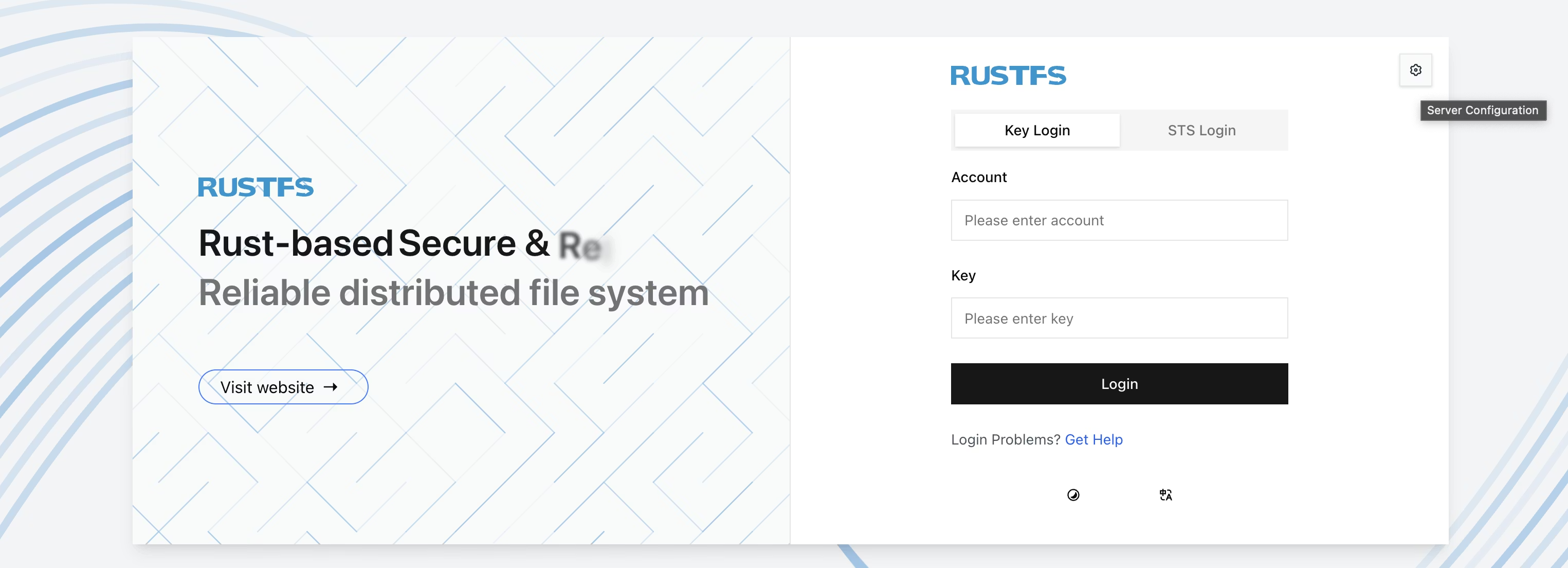
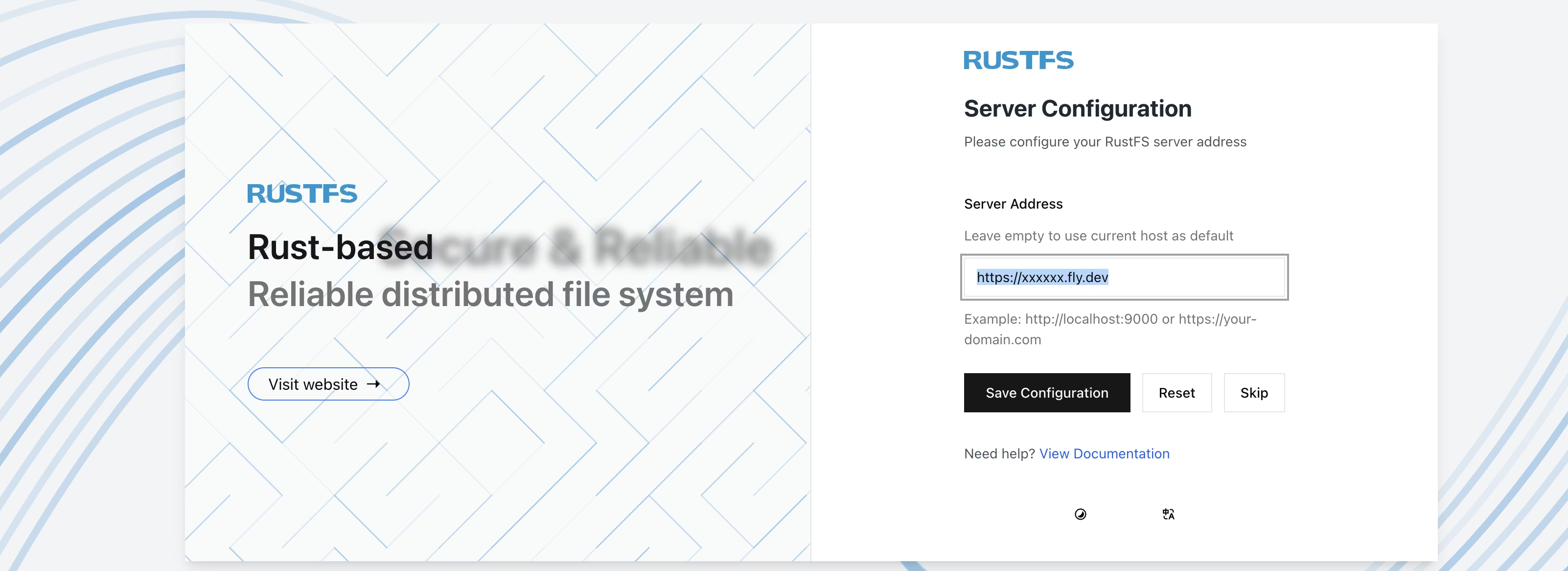
You can now log in using the ACCESS_KEY and SECRET_KEY you set as secrets.
The aws CLI can be used as follows:
aws configure --profile rustfs
# Set ACCESS_KEY and SECRET_KEY. Region can be anything.
aws --profile rustfs --endpoint-url https://<Hostname> s3 ls