Tanzu Kubernetes Grid 1.2をAWSにインストールするメモ
本記事は、Tanzu Kubernetes Grid (TKG) 1.2をAWSにインストールするメモです。
Table of contents
CLIのインストール
から
- VMware Tanzu Kubernetes Grid CLI for Mac
をダウンロードして次のようにインストールしてください。
tar xzvf tkg-darwin-amd64-v1.2.0-vmware.1.tar.gz

mv tkg/tkg-darwin-amd64-v1.2.0+vmware.1 /usr/local/bin/tkg

chmod +x /usr/local/bin/tkg
その他、Dockerが必要です。
次のバージョンで動作確認しています。
$ tkg version
Client:
	Version: v1.2.0
	Git commit: 05b233e75d6e40659247a67750b3e998c2d990a5
次のコマンドを実行すると設定ファイル用のディレクトリが生成されます。
tkg get management-cluster
次のようなディレクトリが作成します。
$ find ~/.tkg
/Users/toshiaki/.tkg
/Users/toshiaki/.tkg/bom
/Users/toshiaki/.tkg/bom/bom-1.1.2+vmware.1.yaml
/Users/toshiaki/.tkg/bom/bom-1.18.8+vmware.1.yaml
/Users/toshiaki/.tkg/bom/bom-tkg-1.0.0.yaml
/Users/toshiaki/.tkg/bom/bom-1.2.0+vmware.1.yaml
/Users/toshiaki/.tkg/bom/bom-1.17.6+vmware.1.yaml
/Users/toshiaki/.tkg/bom/bom-1.17.11+vmware.1.yaml
/Users/toshiaki/.tkg/bom/bom-1.1.0+vmware.1.yaml
/Users/toshiaki/.tkg/bom/bom-1.17.9+vmware.1.yaml
/Users/toshiaki/.tkg/bom/bom-1.1.3+vmware.1.yaml
/Users/toshiaki/.tkg/providers
/Users/toshiaki/.tkg/providers/infrastructure-azure
/Users/toshiaki/.tkg/providers/infrastructure-azure/v0.4.8
/Users/toshiaki/.tkg/providers/infrastructure-azure/v0.4.8/infrastructure-components.yaml
/Users/toshiaki/.tkg/providers/infrastructure-azure/v0.4.8/cluster-template-definition-prod.yaml
/Users/toshiaki/.tkg/providers/infrastructure-azure/v0.4.8/cluster-template-definition-dev.yaml
/Users/toshiaki/.tkg/providers/infrastructure-azure/v0.4.8/ytt
/Users/toshiaki/.tkg/providers/infrastructure-azure/v0.4.8/ytt/overlay.yaml
/Users/toshiaki/.tkg/providers/infrastructure-azure/v0.4.8/ytt/base-template.yaml
/Users/toshiaki/.tkg/providers/infrastructure-azure/ytt
/Users/toshiaki/.tkg/providers/infrastructure-azure/ytt/azure-overlay.yaml
/Users/toshiaki/.tkg/providers/control-plane-kubeadm
/Users/toshiaki/.tkg/providers/control-plane-kubeadm/v0.3.10
/Users/toshiaki/.tkg/providers/control-plane-kubeadm/v0.3.10/control-plane-components.yaml
/Users/toshiaki/.tkg/providers/providers.md5sum
/Users/toshiaki/.tkg/providers/infrastructure-vsphere
/Users/toshiaki/.tkg/providers/infrastructure-vsphere/v0.7.1
/Users/toshiaki/.tkg/providers/infrastructure-vsphere/v0.7.1/infrastructure-components.yaml
/Users/toshiaki/.tkg/providers/infrastructure-vsphere/v0.7.1/cluster-template-definition-prod.yaml
/Users/toshiaki/.tkg/providers/infrastructure-vsphere/v0.7.1/cluster-template-definition-dev.yaml
/Users/toshiaki/.tkg/providers/infrastructure-vsphere/v0.7.1/ytt
/Users/toshiaki/.tkg/providers/infrastructure-vsphere/v0.7.1/ytt/overlay.yaml
/Users/toshiaki/.tkg/providers/infrastructure-vsphere/v0.7.1/ytt/add_csi.yaml
/Users/toshiaki/.tkg/providers/infrastructure-vsphere/v0.7.1/ytt/csi-vsphere.lib.txt
/Users/toshiaki/.tkg/providers/infrastructure-vsphere/v0.7.1/ytt/csi.lib.yaml
/Users/toshiaki/.tkg/providers/infrastructure-vsphere/v0.7.1/ytt/base-template.yaml
/Users/toshiaki/.tkg/providers/infrastructure-vsphere/ytt
/Users/toshiaki/.tkg/providers/infrastructure-vsphere/ytt/vsphere-overlay.yaml
/Users/toshiaki/.tkg/providers/cluster-api
/Users/toshiaki/.tkg/providers/cluster-api/v0.3.10
/Users/toshiaki/.tkg/providers/cluster-api/v0.3.10/core-components.yaml
/Users/toshiaki/.tkg/providers/config.yaml
/Users/toshiaki/.tkg/providers/bootstrap-kubeadm
/Users/toshiaki/.tkg/providers/bootstrap-kubeadm/v0.3.10
/Users/toshiaki/.tkg/providers/bootstrap-kubeadm/v0.3.10/bootstrap-components.yaml
/Users/toshiaki/.tkg/providers/infrastructure-aws
/Users/toshiaki/.tkg/providers/infrastructure-aws/v0.5.5
/Users/toshiaki/.tkg/providers/infrastructure-aws/v0.5.5/infrastructure-components.yaml
/Users/toshiaki/.tkg/providers/infrastructure-aws/v0.5.5/cluster-template-definition-prod.yaml
/Users/toshiaki/.tkg/providers/infrastructure-aws/v0.5.5/cluster-template-definition-dev.yaml
/Users/toshiaki/.tkg/providers/infrastructure-aws/v0.5.5/ytt
/Users/toshiaki/.tkg/providers/infrastructure-aws/v0.5.5/ytt/overlay.yaml
/Users/toshiaki/.tkg/providers/infrastructure-aws/v0.5.5/ytt/base-template.yaml
/Users/toshiaki/.tkg/providers/infrastructure-aws/ytt
/Users/toshiaki/.tkg/providers/infrastructure-aws/ytt/aws-overlay.yaml
/Users/toshiaki/.tkg/providers/config_default.yaml
/Users/toshiaki/.tkg/providers/infrastructure-docker
/Users/toshiaki/.tkg/providers/infrastructure-docker/v0.3.10
/Users/toshiaki/.tkg/providers/infrastructure-docker/v0.3.10/infrastructure-components.yaml
/Users/toshiaki/.tkg/providers/infrastructure-docker/v0.3.10/metadata.yaml
/Users/toshiaki/.tkg/providers/infrastructure-docker/v0.3.10/cluster-template-definition-prod.yaml
/Users/toshiaki/.tkg/providers/infrastructure-docker/v0.3.10/cluster-template-definition-dev.yaml
/Users/toshiaki/.tkg/providers/infrastructure-docker/v0.3.10/ytt
/Users/toshiaki/.tkg/providers/infrastructure-docker/v0.3.10/ytt/overlay.yaml
/Users/toshiaki/.tkg/providers/infrastructure-docker/v0.3.10/ytt/base-template.yaml
/Users/toshiaki/.tkg/providers/infrastructure-docker/ytt
/Users/toshiaki/.tkg/providers/infrastructure-docker/ytt/docker-overlay.yaml
/Users/toshiaki/.tkg/providers/infrastructure-tkg-service-vsphere
/Users/toshiaki/.tkg/providers/infrastructure-tkg-service-vsphere/v1.0.0
/Users/toshiaki/.tkg/providers/infrastructure-tkg-service-vsphere/v1.0.0/cluster-template-definition-prod.yaml
/Users/toshiaki/.tkg/providers/infrastructure-tkg-service-vsphere/v1.0.0/cluster-template-definition-dev.yaml
/Users/toshiaki/.tkg/providers/infrastructure-tkg-service-vsphere/v1.0.0/ytt
/Users/toshiaki/.tkg/providers/infrastructure-tkg-service-vsphere/v1.0.0/ytt/overlay.yaml
/Users/toshiaki/.tkg/providers/infrastructure-tkg-service-vsphere/v1.0.0/ytt/base-template.yaml
/Users/toshiaki/.tkg/providers/infrastructure-tkg-service-vsphere/ytt
/Users/toshiaki/.tkg/providers/infrastructure-tkg-service-vsphere/ytt/tkg-service-vsphere-overlay.yaml
/Users/toshiaki/.tkg/providers/ytt
/Users/toshiaki/.tkg/providers/ytt/02_addons
/Users/toshiaki/.tkg/providers/ytt/02_addons/cni
/Users/toshiaki/.tkg/providers/ytt/02_addons/cni/antrea
/Users/toshiaki/.tkg/providers/ytt/02_addons/cni/antrea/antrea.lib.yaml
/Users/toshiaki/.tkg/providers/ytt/02_addons/cni/antrea/antrea_overlay.lib.yaml
/Users/toshiaki/.tkg/providers/ytt/02_addons/cni/add_cni.yaml
/Users/toshiaki/.tkg/providers/ytt/02_addons/cni/calico
/Users/toshiaki/.tkg/providers/ytt/02_addons/cni/calico/calico_overlay.lib.yaml
/Users/toshiaki/.tkg/providers/ytt/02_addons/cni/calico/calico.lib.yaml
/Users/toshiaki/.tkg/providers/ytt/02_addons/metadata
/Users/toshiaki/.tkg/providers/ytt/02_addons/metadata/add_cluster_metadata.yaml
/Users/toshiaki/.tkg/providers/ytt/01_plans
/Users/toshiaki/.tkg/providers/ytt/01_plans/dev.yaml
/Users/toshiaki/.tkg/providers/ytt/01_plans/prod.yaml
/Users/toshiaki/.tkg/providers/ytt/01_plans/oidc.yaml
/Users/toshiaki/.tkg/providers/ytt/03_customizations
/Users/toshiaki/.tkg/providers/ytt/03_customizations/filter.yaml
/Users/toshiaki/.tkg/providers/ytt/03_customizations/remove_mhc.yaml
/Users/toshiaki/.tkg/providers/ytt/03_customizations/add_sc.yaml
/Users/toshiaki/.tkg/providers/ytt/03_customizations/registry_skip_tls_verify.yaml
/Users/toshiaki/.tkg/providers/ytt/lib
/Users/toshiaki/.tkg/providers/ytt/lib/validate.star
/Users/toshiaki/.tkg/providers/ytt/lib/helpers.star
/Users/toshiaki/.tkg/.providers.zip.lock
/Users/toshiaki/.tkg/config.yaml
/Users/toshiaki/.tkg/.boms.lock
SSH Keyの作成
TKGで作成されるVM用のSSH Keyを作成します。
export AWS_ACCESS_KEY_ID=****
export AWS_SECRET_ACCESS_KEY=****
export AWS_DEFAULT_REGION=ap-northeast-1
export AWS_SSH_KEY_NAME=tkg-sandbox

aws ec2 create-key-pair --key-name ${AWS_SSH_KEY_NAME} --output json | jq .KeyMaterial -r > ${AWS_SSH_KEY_NAME}.pem
config.yamlの作成
AWSの情報をManagement Cluster用の設定ファイル(~/.tkg/config.yaml)に追記します。
cat <<EOF >> ~/.tkg/config.yaml
AWS_REGION: ${AWS_DEFAULT_REGION}
AWS_NODE_AZ: ${AWS_DEFAULT_REGION}a
AWS_NODE_AZ_1: ${AWS_DEFAULT_REGION}c
AWS_NODE_AZ_2: ${AWS_DEFAULT_REGION}d
AWS_PRIVATE_NODE_CIDR: 10.0.0.0/24
AWS_PRIVATE_NODE_CIDR_1: 10.0.2.0/24
AWS_PRIVATE_NODE_CIDR_2: 10.0.4.0/24
AWS_PUBLIC_NODE_CIDR: 10.0.1.0/24
AWS_PUBLIC_NODE_CIDR_1: 10.0.3.0/24
AWS_PUBLIC_NODE_CIDR_2: 10.0.5.0/24
AWS_PUBLIC_SUBNET_ID:
AWS_PUBLIC_SUBNET_ID_1:
AWS_PUBLIC_SUBNET_ID_2:
AWS_PRIVATE_SUBNET_ID:
AWS_PRIVATE_SUBNET_ID_1:
AWS_PRIVATE_SUBNET_ID_2:
AWS_SSH_KEY_NAME: ${AWS_SSH_KEY_NAME}
AWS_VPC_ID:
AWS_VPC_CIDR: 10.0.0.0/16
CLUSTER_CIDR: 100.96.0.0/11
CONTROL_PLANE_MACHINE_TYPE: t3.small
NODE_MACHINE_TYPE: t3.medium
AWS_B64ENCODED_CREDENTIALS: $(cat <<EOD | base64 -w 0
[default]
aws_access_key_id = ${AWS_ACCESS_KEY_ID}
aws_secret_access_key = ${AWS_SECRET_ACCESS_KEY}
region = ${AWS_DEFAULT_REGION}
EOD)
EOF
AWS CloudFormation Stackの作成
Cloud FormationでIAM関連のリソースを作成します。次のように tkg config permissions aws コマンドで作成されます。
$ tkg config permissions aws
Creating AWS CloudFormation Stack

Following resources are in the stack:

Resource                  |Type                                                                |Status
AWS::IAM::InstanceProfile |control-plane.tkg.cloud.vmware.com                                  |CREATE_COMPLETE
AWS::IAM::InstanceProfile |controllers.tkg.cloud.vmware.com                                    |CREATE_COMPLETE
AWS::IAM::InstanceProfile |nodes.tkg.cloud.vmware.com                                          |CREATE_COMPLETE
AWS::IAM::ManagedPolicy   |arn:aws:iam::120200614459:policy/control-plane.tkg.cloud.vmware.com |CREATE_COMPLETE
AWS::IAM::ManagedPolicy   |arn:aws:iam::120200614459:policy/nodes.tkg.cloud.vmware.com         |CREATE_COMPLETE
AWS::IAM::ManagedPolicy   |arn:aws:iam::120200614459:policy/controllers.tkg.cloud.vmware.com   |CREATE_COMPLETE
AWS::IAM::Role            |control-plane.tkg.cloud.vmware.com                                  |CREATE_COMPLETE
AWS::IAM::Role            |controllers.tkg.cloud.vmware.com                                    |CREATE_COMPLETE
AWS::IAM::Role            |nodes.tkg.cloud.vmware.com                                          |CREATE_COMPLETE
Management ClusterをAWSに作成
TKGでWorkload Clusterを作成するための、Management Clusterを作成します。
ドキュメントではGUIを使ってインストールすることを推奨されていますが、CLIでインストールします。
次のコマンドでManagement Clusterを作成します。Control Planeの台数はdev planが1台、prodが3台になります。
tkg init --infrastructure aws --name tkg-sandbox --plan dev
tkg initでKindクラスタ作成、clusterctl init、clusterclt config、kubectl apply相当の処理が行われます。
次のようなログが出力されます。
Waiting for cert-manager to be available...
Installing Provider="cluster-api" Version="v0.3.10" TargetNamespace="capi-system"
Installing Provider="bootstrap-kubeadm" Version="v0.3.10" TargetNamespace="capi-kubeadm-bootstrap-system"
Installing Provider="control-plane-kubeadm" Version="v0.3.10" TargetNamespace="capi-kubeadm-control-plane-system"
Installing Provider="infrastructure-aws" Version="v0.5.5" TargetNamespace="capa-system"
Start creating management cluster...
Saving management cluster kuebconfig into /home/maki/.kube/config
Installing providers on management cluster...
Fetching providers
Installing cert-manager Version="v0.16.1"
Waiting for cert-manager to be available...
Installing Provider="cluster-api" Version="v0.3.10" TargetNamespace="capi-system"
Installing Provider="bootstrap-kubeadm" Version="v0.3.10" TargetNamespace="capi-kubeadm-bootstrap-system"
Installing Provider="control-plane-kubeadm" Version="v0.3.10" TargetNamespace="capi-kubeadm-control-plane-system"
Installing Provider="infrastructure-aws" Version="v0.5.5" TargetNamespace="capa-system"
Waiting for the management cluster to get ready for move...
Waiting for addons installation...
Moving all Cluster API objects from bootstrap cluster to management cluster...
Performing move...
Discovering Cluster API objects
Moving Cluster API objects Clusters=1
Creating objects in the target cluster
Deleting objects from the source cluster
Context set for management cluster tkg-sandbox as 'tkg-sandbox-admin@tkg-sandbox'.

Management cluster created!


You can now create your first workload cluster by running the following:

  tkg create cluster [name] --kubernetes-version=[version] --plan=[plan]
EC2上には次のVMが作成されています。

VPCやNAT Gatewayもconfig.yamlに合わせて作成されます。


tkg get management-clusterまたはtkg get mcコマンドでManagement Cluster一覧を取得できます。
$ tkg get management-cluster
 MANAGEMENT-CLUSTER-NAME  CONTEXT-NAME                   STATUS
 tkg-sandbox *            tkg-sandbox-admin@tkg-sandbox  Success
tkg get cluster --include-management-clusterコマンドでWorkload Cluster及びManagement Cluster一覧を取得できます。
$ tkg get cluster --include-management-cluster
 NAME         NAMESPACE   STATUS   CONTROLPLANE  WORKERS  KUBERNETES        ROLES
 tkg-sandbox  tkg-system  running  1/1           1/1      v1.19.1+vmware.2  management
Management Clusterにkubectlコマンドでアクセスしてみます。
$ kubectl config use-context tkg-sandbox-admin@tkg-sandbox
$ kubectl cluster-info
Kubernetes master is running at https://tkg-sandbox-apiserver-125309106.ap-northeast-1.elb.amazonaws.com:6443
KubeDNS is running at https://tkg-sandbox-apiserver-125309106.ap-northeast-1.elb.amazonaws.com:6443/api/v1/namespaces/kube-system/services/kube-dns:dns/proxy

To further debug and diagnose cluster problems, use 'kubectl cluster-info dump'.
$ kubectl get node -o wide
NAME                                            STATUS   ROLES    AGE    VERSION            INTERNAL-IP   EXTERNAL-IP   OS-IMAGE         KERNEL-VERSION                  CONTAINER-RUNTIME
ip-10-0-0-230.ap-northeast-1.compute.internal   Ready    master   139m   v1.19.1+vmware.2   10.0.0.230    <none>        Amazon Linux 2   4.14.193-149.317.amzn2.x86_64   containerd://1.3.4
ip-10-0-0-64.ap-northeast-1.compute.internal    Ready    <none>   135m   v1.19.1+vmware.2   10.0.0.64     <none>        Amazon Linux 2   4.14.193-149.317.amzn2.x86_64   containerd://1.3.4

$ kubectl get pod -A -o wide
NAMESPACE                           NAME                                                                    READY   STATUS    RESTARTS   AGE    IP            NODE                                            NOMINATED NODE   READINESS GATES
capa-system                         capa-controller-manager-7978bf88dc-48xsv                                2/2     Running   0          134m   100.96.0.5    ip-10-0-0-230.ap-northeast-1.compute.internal   <none>           <none>
capi-kubeadm-bootstrap-system       capi-kubeadm-bootstrap-controller-manager-555959949-vpsrb               2/2     Running   0          134m   100.96.1.8    ip-10-0-0-64.ap-northeast-1.compute.internal    <none>           <none>
capi-kubeadm-control-plane-system   capi-kubeadm-control-plane-controller-manager-55fccd567d-sm96p          2/2     Running   0          134m   100.96.0.4    ip-10-0-0-230.ap-northeast-1.compute.internal   <none>           <none>
capi-system                         capi-controller-manager-dcccc544f-w4p8d                                 2/2     Running   0          134m   100.96.1.6    ip-10-0-0-64.ap-northeast-1.compute.internal    <none>           <none>
capi-webhook-system                 capa-controller-manager-56cf675c-czqwf                                  2/2     Running   0          134m   100.96.1.10   ip-10-0-0-64.ap-northeast-1.compute.internal    <none>           <none>
capi-webhook-system                 capi-controller-manager-84fd8774b6-n9xnj                                2/2     Running   0          135m   100.96.1.5    ip-10-0-0-64.ap-northeast-1.compute.internal    <none>           <none>
capi-webhook-system                 capi-kubeadm-bootstrap-controller-manager-5c4886bf78-vbxkk              2/2     Running   0          134m   100.96.1.7    ip-10-0-0-64.ap-northeast-1.compute.internal    <none>           <none>
capi-webhook-system                 capi-kubeadm-control-plane-controller-manager-85578c464c-hpmcf          2/2     Running   0          134m   100.96.1.9    ip-10-0-0-64.ap-northeast-1.compute.internal    <none>           <none>
cert-manager                        cert-manager-556f68587d-2rf52                                           1/1     Running   0          137m   100.96.1.2    ip-10-0-0-64.ap-northeast-1.compute.internal    <none>           <none>
cert-manager                        cert-manager-cainjector-5bc85c4c69-vdqc5                                1/1     Running   0          137m   100.96.1.4    ip-10-0-0-64.ap-northeast-1.compute.internal    <none>           <none>
cert-manager                        cert-manager-webhook-7bd69dfcf8-qgfp2                                   1/1     Running   0          137m   100.96.1.3    ip-10-0-0-64.ap-northeast-1.compute.internal    <none>           <none>
kube-system                         antrea-agent-bnmxk                                                      2/2     Running   0          135m   10.0.0.64     ip-10-0-0-64.ap-northeast-1.compute.internal    <none>           <none>
kube-system                         antrea-agent-fpz5c                                                      2/2     Running   0          139m   10.0.0.230    ip-10-0-0-230.ap-northeast-1.compute.internal   <none>           <none>
kube-system                         antrea-controller-5d594c5cc7-bjkkg                                      1/1     Running   0          139m   10.0.0.230    ip-10-0-0-230.ap-northeast-1.compute.internal   <none>           <none>
kube-system                         coredns-5bcf65484d-98wlm                                                1/1     Running   0          140m   100.96.0.3    ip-10-0-0-230.ap-northeast-1.compute.internal   <none>           <none>
kube-system                         coredns-5bcf65484d-tmbs2                                                1/1     Running   0          140m   100.96.0.2    ip-10-0-0-230.ap-northeast-1.compute.internal   <none>           <none>
kube-system                         etcd-ip-10-0-0-230.ap-northeast-1.compute.internal                      1/1     Running   0          140m   10.0.0.230    ip-10-0-0-230.ap-northeast-1.compute.internal   <none>           <none>
kube-system                         kube-apiserver-ip-10-0-0-230.ap-northeast-1.compute.internal            1/1     Running   0          140m   10.0.0.230    ip-10-0-0-230.ap-northeast-1.compute.internal   <none>           <none>
kube-system                         kube-controller-manager-ip-10-0-0-230.ap-northeast-1.compute.internal   1/1     Running   0          140m   10.0.0.230    ip-10-0-0-230.ap-northeast-1.compute.internal   <none>           <none>
kube-system                         kube-proxy-smdgg                                                        1/1     Running   0          140m   10.0.0.230    ip-10-0-0-230.ap-northeast-1.compute.internal   <none>           <none>
kube-system                         kube-proxy-zrccj                                                        1/1     Running   0          135m   10.0.0.64     ip-10-0-0-64.ap-northeast-1.compute.internal    <none>           <none>
kube-system                         kube-scheduler-ip-10-0-0-230.ap-northeast-1.compute.internal            1/1     Running   0          140m   10.0.0.230    ip-10-0-0-230.ap-northeast-1.compute.internal   <none>           <none>
Cluster APIのリソースも見てみます。
$ kubectl get cluster -A
NAMESPACE    NAME          PHASE
tkg-system   tkg-sandbox   Provisioned

$ kubectl get machinedeployment -A
NAMESPACE    NAME               PHASE     REPLICAS   AVAILABLE   READY
tkg-system   tkg-sandbox-md-0   Running   1          1           1

$ kubectl get machineset -A
NAMESPACE    NAME                          REPLICAS   AVAILABLE   READY
tkg-system   tkg-sandbox-md-0-6b588d694f   1          1           1

$ kubectl get machine -A
NAMESPACE    NAME                                PROVIDERID                                   PHASE     VERSION
tkg-system   tkg-sandbox-control-plane-xlnrk     aws:///ap-northeast-1a/i-057ad20dbc36d4ba7   Running   v1.19.1+vmware.2
tkg-system   tkg-sandbox-md-0-6b588d694f-m9n6n   aws:///ap-northeast-1a/i-05b02a0c70241aae4   Running   v1.19.1+vmware.2

$ kubectl get machinehealthcheck -A
NAMESPACE    NAME          MAXUNHEALTHY   EXPECTEDMACHINES   CURRENTHEALTHY
tkg-system   tkg-sandbox   100%           1                  1

$ kubectl get kubeadmcontrolplane -A
NAMESPACE    NAME                        INITIALIZED   API SERVER AVAILABLE   VERSION            REPLICAS   READY   UPDATED   UNAVAILABLE
tkg-system   tkg-sandbox-control-plane   true          true                   v1.19.1+vmware.2   1          1       1

$ kubectl get kubeadmconfigtemplate -A
NAMESPACE    NAME               AGE
tkg-system   tkg-sandbox-md-0   137m
AWS実装のリソースも見てみます。
$ kubectl get awscluster -A
NAMESPACE    NAME          CLUSTER       READY   VPC                     BASTION IP
tkg-system   tkg-sandbox   tkg-sandbox   true    vpc-01df4b34c0316a1a6   52.198.198.63

$ kubectl get awsmachine -A
NAMESPACE    NAME                              CLUSTER       STATE     READY   INSTANCEID                                   MACHINE
tkg-system   tkg-sandbox-control-plane-qcc9b   tkg-sandbox   running   true    aws:///ap-northeast-1a/i-057ad20dbc36d4ba7   tkg-sandbox-control-plane-xlnrk
tkg-system   tkg-sandbox-md-0-7wvwg            tkg-sandbox   running   true    aws:///ap-northeast-1a/i-05b02a0c70241aae4   tkg-sandbox-md-0-6b588d694f-m9n6n

$ kubectl get awsmachinetemplate -A
NAMESPACE    NAME                        AGE
tkg-system   tkg-sandbox-control-plane   138m
tkg-system   tkg-sandbox-md-0            138m
Bastionサーバーにはsshでアクセスできます。BastionサーバーからClusterへのVMにsshでアクセスできます。
どちらも~/${AWS_SSH_KEY_NAME}.pemを使用します。
chmod 600 ~/${AWS_SSH_KEY_NAME}.pem
scp -i ~/${AWS_SSH_KEY_NAME}.pem ~/${AWS_SSH_KEY_NAME}.pem ubuntu@52.198.198.63:~/
ssh ubuntu@<Bastion IP> -i ~/${AWS_SSH_KEY_NAME}.pem
# Bastionサーバー内で
ssh ec2-user@<Cluster VM IP> -i ~/${AWS_SSH_KEY_NAME}.pem
Workload Clusterを作成
対象のManagement Clusterをtkg set management-clusterで指定します。1つしかなければ不要です。
$ tkg set management-cluster tkg-sandbox
The current management cluster context is switched to tkg-sandbox
対象となっているManagement Clusterをtkg set management-clusterで確認できます。*がついているクラスタが対象です。
$ tkg get management-cluster
 MANAGEMENT-CLUSTER-NAME  CONTEXT-NAME
 tkg-sandbox *            tkg-sandbox-admin@tkg-sandbox
tkg create clusterでWorkload Clusterを作成します。
tkg create cluster demo --plan dev
次のようなログが出力されます。
Logs of the command execution can also be found at: /tmp/tkg-20201105T124518501764498.log
Validating configuration...
Creating workload cluster 'demo'...
Waiting for cluster to be initialized...
Waiting for cluster nodes to be available...
Waiting for addons installation...

Workload cluster 'demo' created
EC2上には次のVMが作成されています。

Workload Cluster用にも専用のVPCやNAT Gatewayがconfig.yamlに合わせて作成されます。


Workload ClusterをManagement Clusterと同じVPCに作成する方法は後述します。
tkg get clusterでWorkload Clusterを確認できます。
$ tkg get cluster
 NAME  NAMESPACE  STATUS   CONTROLPLANE  WORKERS  KUBERNETES        ROLES
 demo  default    running  1/1           1/1      v1.19.1+vmware.2  <none>
Cluster APIのリソースを確認します。
$ kubectl get cluster -A
NAMESPACE    NAME          PHASE
default      demo          Provisioned
tkg-system   tkg-sandbox   Provisioned

$ kubectl get machinedeployment -A
NAMESPACE    NAME               PHASE     REPLICAS   AVAILABLE   READY
default      demo-md-0          Running   1          1           1
tkg-system   tkg-sandbox-md-0   Running   1          1           1

$ kubectl get machineset -A
NAMESPACE    NAME                          REPLICAS   AVAILABLE   READY
default      demo-md-0-686d958865          1          1           1
tkg-system   tkg-sandbox-md-0-6b588d694f   1          1           1

$ kubectl get machine -A
NAMESPACE    NAME                                PROVIDERID                                   PHASE     VERSION
default      demo-control-plane-srv29            aws:///ap-northeast-1a/i-0bd739135d2801cfc   Running   v1.19.1+vmware.2
default      demo-md-0-686d958865-74bqc          aws:///ap-northeast-1a/i-091cbde5d15753cfc   Running   v1.19.1+vmware.2
tkg-system   tkg-sandbox-control-plane-xlnrk     aws:///ap-northeast-1a/i-057ad20dbc36d4ba7   Running   v1.19.1+vmware.2
tkg-system   tkg-sandbox-md-0-6b588d694f-m9n6n   aws:///ap-northeast-1a/i-05b02a0c70241aae4   Running   v1.19.1+vmware.2

$ kubectl get machinehealthcheck -A
NAMESPACE    NAME          MAXUNHEALTHY   EXPECTEDMACHINES   CURRENTHEALTHY
default      demo          100%           1                  1
tkg-system   tkg-sandbox   100%           1                  1

$ kubectl get kubeadmcontrolplane -A
NAMESPACE    NAME                        INITIALIZED   API SERVER AVAILABLE   VERSION            REPLICAS   READY   UPDATED   UNAVAILABLE
default      demo-control-plane          true          true                   v1.19.1+vmware.2   1          1       1
tkg-system   tkg-sandbox-control-plane   true          true                   v1.19.1+vmware.2   1          1       1

$ kubectl get kubeadmconfigtemplate -A
NAMESPACE    NAME               AGE
default      demo-md-0          12m
tkg-system   tkg-sandbox-md-0   3h23m

$ kubectl get awscluster -A
NAMESPACE    NAME          CLUSTER       READY   VPC                     BASTION IP
default      demo          demo          true    vpc-082b84788bec07ba0   18.176.55.109
tkg-system   tkg-sandbox   tkg-sandbox   true    vpc-01df4b34c0316a1a6   52.198.198.63

$ kubectl get awsmachine -A
NAMESPACE    NAME                              CLUSTER       STATE     READY   INSTANCEID                                   MACHINE
default      demo-control-plane-wr7rh          demo          running   true    aws:///ap-northeast-1a/i-0bd739135d2801cfc   demo-control-plane-srv29
default      demo-md-0-m5mp4                   demo          running   true    aws:///ap-northeast-1a/i-091cbde5d15753cfc   demo-md-0-686d958865-74bqc
tkg-system   tkg-sandbox-control-plane-qcc9b   tkg-sandbox   running   true    aws:///ap-northeast-1a/i-057ad20dbc36d4ba7   tkg-sandbox-control-plane-xlnrk
tkg-system   tkg-sandbox-md-0-7wvwg            tkg-sandbox   running   true    aws:///ap-northeast-1a/i-05b02a0c70241aae4   tkg-sandbox-md-0-6b588d694f-m9n6n

$ kubectl get awsmachinetemplate -A
NAMESPACE    NAME                        AGE
default      demo-control-plane          14m
default      demo-md-0                   14m
tkg-system   tkg-sandbox-control-plane   3h24m
tkg-system   tkg-sandbox-md-0            3h24m
Workload Cluster demoのconfigを取得して、Current Contextに設定します。
tkg get credentials demo
kubectl config use-context demo-admin@demo
Workload Cluster demoを確認します。
$ kubectl cluster-info
Kubernetes master is running at https://demo-apiserver-1258812371.ap-northeast-1.elb.amazonaws.com:6443
KubeDNS is running at https://demo-apiserver-1258812371.ap-northeast-1.elb.amazonaws.com:6443/api/v1/namespaces/kube-system/services/kube-dns:dns/proxy

To further debug and diagnose cluster problems, use 'kubectl cluster-info dump'.

$ kubectl get node -o wide
NAME                                            STATUS   ROLES    AGE     VERSION            INTERNAL-IP   EXTERNAL-IP   OS-IMAGE         KERNEL-VERSION                  CONTAINER-RUNTIME
ip-10-0-0-128.ap-northeast-1.compute.internal   Ready    <none>   7m57s   v1.19.1+vmware.2   10.0.0.128    <none>        Amazon Linux 2   4.14.193-149.317.amzn2.x86_64   containerd://1.3.4
ip-10-0-0-170.ap-northeast-1.compute.internal   Ready    master   9m29s   v1.19.1+vmware.2   10.0.0.170    <none>        Amazon Linux 2   4.14.193-149.317.amzn2.x86_64   containerd://1.3.4

$ kubectl get pod -A -o wide
NAMESPACE     NAME                                                                    READY   STATUS    RESTARTS   AGE     IP           NODE                                            NOMINATED NODE   READINESS GATES
kube-system   antrea-agent-mv5q6                                                      2/2     Running   0          9m45s   10.0.0.170   ip-10-0-0-170.ap-northeast-1.compute.internal   <none>           <none>
kube-system   antrea-agent-xkxhx                                                      2/2     Running   0          8m17s   10.0.0.128   ip-10-0-0-128.ap-northeast-1.compute.internal   <none>           <none>
kube-system   antrea-controller-5d594c5cc7-7vbfg                                      1/1     Running   0          9m45s   10.0.0.170   ip-10-0-0-170.ap-northeast-1.compute.internal   <none>           <none>
kube-system   coredns-5bcf65484d-4fvpg                                                1/1     Running   0          9m48s   100.96.0.2   ip-10-0-0-170.ap-northeast-1.compute.internal   <none>           <none>
kube-system   coredns-5bcf65484d-djl5z                                                1/1     Running   0          9m48s   100.96.0.3   ip-10-0-0-170.ap-northeast-1.compute.internal   <none>           <none>
kube-system   etcd-ip-10-0-0-170.ap-northeast-1.compute.internal                      1/1     Running   0          9m43s   10.0.0.170   ip-10-0-0-170.ap-northeast-1.compute.internal   <none>           <none>
kube-system   kube-apiserver-ip-10-0-0-170.ap-northeast-1.compute.internal            1/1     Running   0          9m43s   10.0.0.170   ip-10-0-0-170.ap-northeast-1.compute.internal   <none>           <none>
kube-system   kube-controller-manager-ip-10-0-0-170.ap-northeast-1.compute.internal   1/1     Running   0          9m42s   10.0.0.170   ip-10-0-0-170.ap-northeast-1.compute.internal   <none>           <none>
kube-system   kube-proxy-lrk29                                                        1/1     Running   0          8m17s   10.0.0.128   ip-10-0-0-128.ap-northeast-1.compute.internal   <none>           <none>
kube-system   kube-proxy-p5jlm                                                        1/1     Running   0          9m48s   10.0.0.170   ip-10-0-0-170.ap-northeast-1.compute.internal   <none>           <none>
kube-system   kube-scheduler-ip-10-0-0-170.ap-northeast-1.compute.internal            1/1     Running   0          9m42s   10.0.0.170   ip-10-0-0-170.ap-northeast-1.compute.internal   <none>           <none>
動作確認用にサンプルアプリをデプロイします。
kubectl create deployment demo --image=making/hello-cnb --dry-run=client -o=yaml > /tmp/deployment.yaml
echo --- >> /tmp/deployment.yaml
kubectl create service loadbalancer demo --tcp=80:8080 --dry-run=client -o=yaml >> /tmp/deployment.yaml
kubectl apply -f /tmp/deployment.yaml
PodとServiceを確認します。
$ kubectl get pod,svc -l app=demo
NAME                        READY   STATUS    RESTARTS   AGE
pod/demo-597cf89c5f-srpmv   1/1     Running   0          7m4s

NAME           TYPE           CLUSTER-IP       EXTERNAL-IP                                                                   PORT(S)        AGE
service/demo   LoadBalancer   100.68.180.248   a7b1d8c18f5994f279eb4f0773dfe730-283150384.ap-northeast-1.elb.amazonaws.com   80:31173/TCP   7m4s
アプリにアクセスします。
$ curl http://a7b1d8c18f5994f279eb4f0773dfe730-283150384.ap-northeast-1.elb.amazonaws.com/actuator/health
  {"status":"UP","groups":["liveness","readiness"]}
デプロイしたリソースを削除します。
kubectl delete -f /tmp/deployment.yaml
Workload Clusterを削除
いったんdemo Workload Clusterを削除します。
tkg delete cluster demo -y
tkg get clusterを確認するとSTATUSがdeletingになります。
$ tkg get cluster
 NAME  NAMESPACE  STATUS    CONTROLPLANE  WORKERS  KUBERNETES        ROLES
 demo  default    deleting  1/1                    v1.19.1+vmware.2  <none>
しばらくするとtkg get clusterの結果からdemoが消えます。
$ tkg get cluster
 NAME  NAMESPACE  STATUS  CONTROLPLANE  WORKERS  KUBERNETES
Workload ClusterをManagement Clusterと同じVPC/Subnetに作成
次にWorkload ClusterをManagement Clusterと同じVPC/Subnetに作成します。Bastion VMやNAT GatewayをManagement Clusterと共用できます。
~/.tkg/config.yamlを編集し、次の箇所を設定します。
# ... (略) ...
AWS_PUBLIC_SUBNET_ID: <Management ClusterのPublic Subnet ID>
AWS_PUBLIC_SUBNET_ID_1: <Management ClusterのPublic Subnet ID 1 (--plan=prodの場合)>
AWS_PUBLIC_SUBNET_ID_2: <Management ClusterのPublic Subnet ID 2 (--plan=prodの場合)>
AWS_PRIVATE_SUBNET_ID: <Management ClusterのPrivate Subnet ID>
AWS_PRIVATE_SUBNET_ID_1: <Management ClusterのPrivate Subnet ID 1 (--plan=prodの場合)>
AWS_PRIVATE_SUBNET_ID_2: <Management ClusterのPrivate Subnet ID 2 (--plan=prodの場合)>
AWS_SSH_KEY_NAME: tkg-sandbox
AWS_VPC_ID: <Management ClusterのVPC ID>
# ... (略) ...
次の図の例だと、

~/.tkg/config.yamlは次のようになります。
# ... (略) ...
AWS_PUBLIC_SUBNET_ID: subnet-06054c4866dafd2ad
AWS_PRIVATE_SUBNET_ID: subnet-01061ff8fbb3eb50f
AWS_SSH_KEY_NAME: tkg-sandbox
AWS_VPC_ID: vpc-0b1166959b313d695
# ... (略) ...
このConfigを使ってWorkload Clusterを作成します。
tkg create cluster demo --plan dev
EC2上のVMを確認するとWorkload Cluster用のBastionがいないことを確認できます。

VPCもNAT Gatewayも一つのままです。


AWSClusterとAWSMachineは次のようになります。
$ kubectl config use-context tkg-sandbox-admin@tkg-sandbox
$ kubectl get awscluster -A
NAMESPACE    NAME          CLUSTER       READY   VPC                     BASTION IP
default      demo          demo          true    vpc-01df4b34c0316a1a6
tkg-system   tkg-sandbox   tkg-sandbox   true    vpc-01df4b34c0316a1a6   52.198.198.63

$ kubectl get awsmachine -A
NAMESPACE    NAME                              CLUSTER       STATE     READY   INSTANCEID                                   MACHINE
default      demo-control-plane-7pgkh          demo          running   true    aws:///ap-northeast-1a/i-0180cfa9c75e06ba2   demo-control-plane-dgnnb
default      demo-md-0-nxctr                   demo          running   true    aws:///ap-northeast-1a/i-01b891eb6e12f01c8   demo-md-0-686d958865-g9f9v
tkg-system   tkg-sandbox-control-plane-qcc9b   tkg-sandbox   running   true    aws:///ap-northeast-1a/i-057ad20dbc36d4ba7   tkg-sandbox-control-plane-xlnrk
tkg-system   tkg-sandbox-md-0-7wvwg            tkg-sandbox   running   true    aws:///ap-northeast-1a/i-05b02a0c70241aae4   tkg-sandbox-md-0-6b588d694f-m9n6n
先ほどと同じように、Workload Cluster demoのconfigを取得して、Current Contextに設定します。
tkg get credentials demo
kubectl config use-context demo-admin@demo
Workload Cluster demoを確認します。
$ kubectl cluster-info
Kubernetes master is running at https://demo-apiserver-286173010.ap-northeast-1.elb.amazonaws.com:6443
KubeDNS is running at https://demo-apiserver-286173010.ap-northeast-1.elb.amazonaws.com:6443/api/v1/namespaces/kube-system/services/kube-dns:dns/proxy

To further debug and diagnose cluster problems, use 'kubectl cluster-info dump'.
$ kubectl get node -o wide
NAME                                            STATUS   ROLES    AGE   VERSION            INTERNAL-IP   EXTERNAL-IP   OS-IMAGE         KERNEL-VERSION                  CONTAINER-RUNTIME
ip-10-0-0-199.ap-northeast-1.compute.internal   Ready    master   16m   v1.19.1+vmware.2   10.0.0.199    <none>        Amazon Linux 2   4.14.193-149.317.amzn2.x86_64   containerd://1.3.4
ip-10-0-0-38.ap-northeast-1.compute.internal    Ready    <none>   14m   v1.19.1+vmware.2   10.0.0.38     <none>        Amazon Linux 2   4.14.193-149.317.amzn2.x86_64   containerd://1.3.4
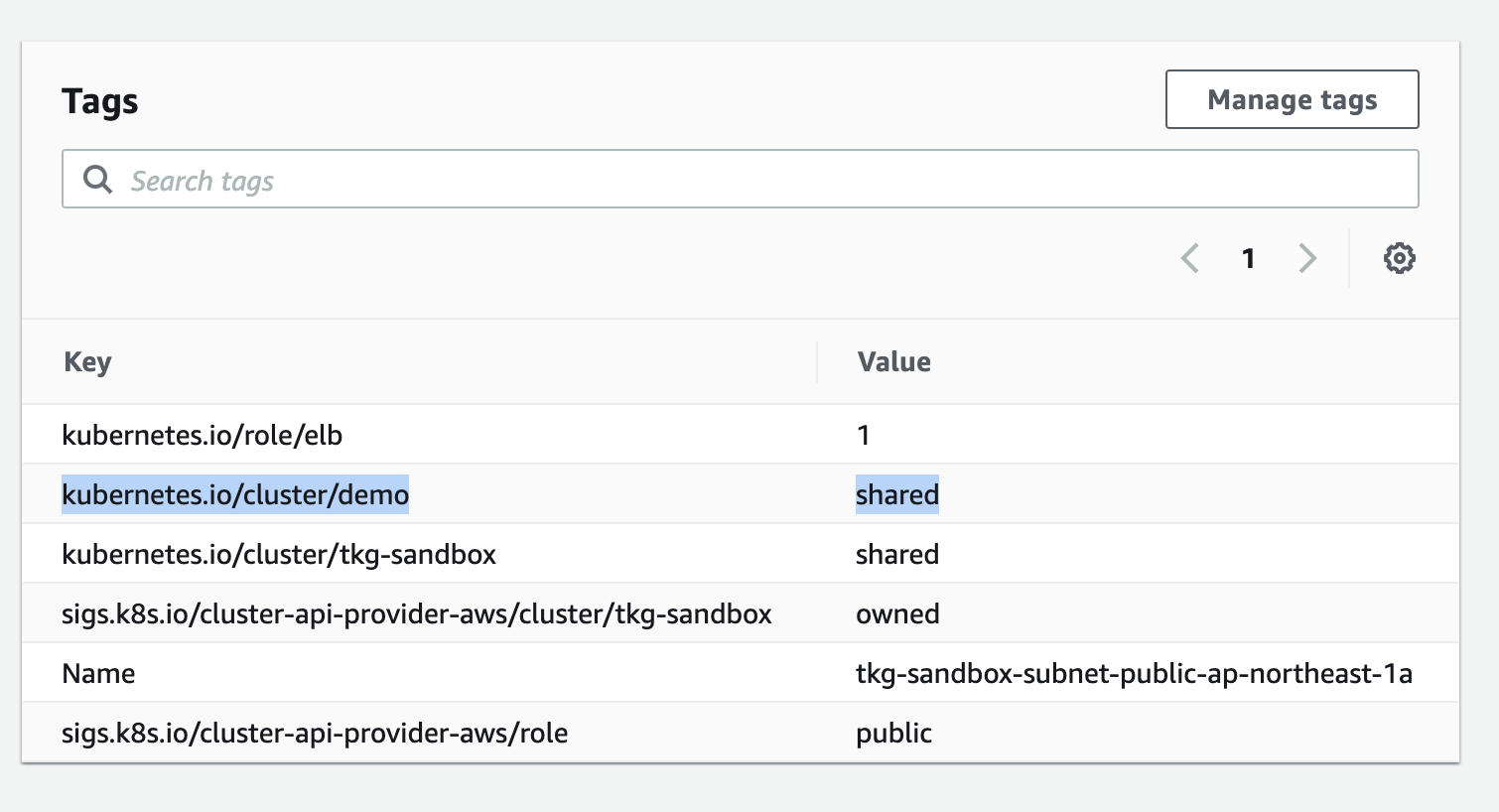
一点、注意点があり、Type: LoadBalancerなServiceがプロビジョニングするLoadBalancerのpublic subnetを明示的に指定する必要があります。
対象のpublic subnet(prod planの場合は3AZ分)に、次の図のようにkeyがkubernetes.io/cluster/<cluster-name>、valueがsharedであるtagを追加する必要があります。
同じ要領で、他の既存のVPC/Subnetに作成することもできます。BastionサーバーやNATのリソースを集約したい場合はこちらが良いです。
TKG外の既存のVPCを使う場合はconfig.yamlの4行目にある BASTION_HOST_ENABLED: "true" を BASTION_HOST_ENABLED: "false" に変更すれば、Bastionサーバーは作成されません。
ただし、同じVPC内に別のBastionサーバーまたはJumpboxサーバーがないとTKGで作成されたVMにsshでログインできないので気をつけてください。
逆に言うと、AWS_VPC_IDやAWS_PUBLIC_SUBNET_ID、AWS_PRIVATE_SUBNET_ID等が設定されていなければ、毎回自動で作成されます。
Workload Clusterのスケールアウト
tkg scale clusterコマンドでWorkload Clusterをスケールアウトできます。
tkg scale cluster demo -w 3
Workerが3台に増えたことが確認できます。
$ kubectl get node -o wide

NAME                                            STATUS   ROLES    AGE     VERSION            INTERNAL-IP   EXTERNAL-IP   OS-IMAGE         KERNEL-VERSION                  CONTAINER-RUNTIME
ip-10-0-0-199.ap-northeast-1.compute.internal   Ready    master   21m     v1.19.1+vmware.2   10.0.0.199    <none>        Amazon Linux 2   4.14.193-149.317.amzn2.x86_64   containerd://1.3.4
ip-10-0-0-254.ap-northeast-1.compute.internal   Ready    <none>   2m39s   v1.19.1+vmware.2   10.0.0.254    <none>        Amazon Linux 2   4.14.193-149.317.amzn2.x86_64   containerd://1.3.4
ip-10-0-0-29.ap-northeast-1.compute.internal    Ready    <none>   2m40s   v1.19.1+vmware.2   10.0.0.29     <none>        Amazon Linux 2   4.14.193-149.317.amzn2.x86_64   containerd://1.3.4
ip-10-0-0-38.ap-northeast-1.compute.internal    Ready    <none>   18m     v1.19.1+vmware.2   10.0.0.38     <none>        Amazon Linux 2   4.14.193-149.317.amzn2.x86_64   containerd://1.3.4
デフォルトの設定ではdev Planの場合は1AZ、prod Planの場合は3AZになります。
Workerを3 AZにデプロイしたいけれども、Control Planeは1インスタンスにしたい場合は次のようにクラスタを作成すれば良いです。
tkg create cluster demo --plan prod --controlplane-machine-count 1 --worker-machine-count 3
prod PlanではWorkerは最低3インスタンス必要です。
Clusterの削除
次のコマンドでWorkload Clusterを削除します。
tkg delete cluster demo -y
Workload Clusterが削除された後、Management Clusterを削除します。
tkg delete management-cluster tkg-sandbox -y
Management Clusterの削除はKindが使われます。
TKGでAWS上にKubernetesクラスタを作成しました。
tkgコマンド(+ Cluster API)により一貫した手法でAWSでもvSphereでも同じようにクラスタを作成・管理できるため、
マルチクラウドでKubernetesを管理している場合は特に有用だと思います。