Notes on Installing VMware Tanzu for Postgres 18.2 on Rocky Linux with Patroni HA Configuration
VMware Tanzu for Postgres 18.2 installation notes on Rocky Linux 9 with a Patroni HA configuration.
In this article we use an OrbStack Linux Machine to build the following architecture, which follows the recommended configuration from the official documentation other than HAProxy.
- Etcd cluster: 3 nodes (
etcd-1,etcd-2,etcd-3) - PostgreSQL + Patroni cluster: 3 nodes (
postgres-1,postgres-2,postgres-3) - HAProxy load balancer: 1 node (
haproxy)
OrbStack disables the firewall by default; open ports as needed.
Table of Contents
Downloading VMware Tanzu for Postgres
Log in to Broadcom Support and go to the VMware Tanzu for Postgres download page.
Select the latest version.

Check “I agree to the Terms and Conditions”.

Download the EL9 installer to ~/Downloads.

cd ~/Downloads
mkdir -p vmware-postgres-18.2.0
unzip -d vmware-postgres-18.2.0 vmware-postgres-18.2.0.el9.x86_64.zip
Building the Etcd Cluster
Patroni uses Etcd as a Distributed Configuration Store (DCS) for leader election and configuration management. Here we build a 3‑node Etcd cluster.
First, create the first Etcd Linux Machine and open a shell.
orb create -a amd64 rocky:9 etcd-1
orb shell -m etcd-1
Create a system user and group for Etcd and prepare the data directory.
sudo groupadd --system etcd
sudo useradd -s /sbin/nologin --system -g etcd etcd
sudo mkdir -p /var/lib/etcd /etc/etcd
sudo chown -R etcd:etcd /var/lib/etcd
sudo chmod 750 /var/lib/etcd
Install the Etcd RPM that comes with VMware Tanzu for Postgres. Because OrbStack mounts the host’s /Users, you can access the downloaded file directly.
cd /Users/$USER/Downloads/vmware-postgres-18.2.0
sudo dnf install -y vmware-postgres-etcd-3.6.7-2.el9.x86_64.rpm
Create a systemd unit file to manage Etcd as a service.
sudo tee /etc/systemd/system/etcd.service <<'EOF'
[Unit]
Description=etcd distributed reliable key-value store
After=network-online.target
Wants=network-online.target

[Service]
Type=notify
User=etcd
Group=etcd
ExecStart=/opt/vmware/etcd/bin/etcd --config-file /etc/etcd/etcd.yaml
Restart=on-failure
RestartSec=10s
LimitNOFILE=65536

[Install]
WantedBy=multi-user.target
EOF

sudo systemctl daemon-reload
The first node is configured; exit the shell.
exit
Clone the first machine to create the remaining two Etcd nodes.
orb clone etcd-1 etcd-2
orb clone etcd-1 etcd-3
Start the cloned machines.
orb start etcd-2
orb start etcd-3
Check each node’s IP address; these will be used in the Etcd configuration files.
$ orb list
NAME    STATE    DISTRO      VERSION  ARCH   SIZE  IP
----    -----    ------      -------  ----   ----  --
etcd-1  running  rockylinux  9        amd64        192.168.139.78
etcd-2  running  rockylinux  9        amd64        192.168.139.203
etcd-3  running  rockylinux  9        amd64        192.168.139.214
Create generate_etcd_configs.sh to generate the Etcd config files for each node.
#!/bin/bash

hosts=("etcd-1" "etcd-2" "etcd-3")
addrs=("192.168.139.78" "192.168.139.203" "192.168.139.214")

count=${#hosts[@]}

for i in "${!hosts[@]}"; do
  instance_hostname="${hosts[$i]}"
  instance_address="${addrs[$i]}"

  others=()
  for j in "${!hosts[@]}"; do
    [[ $i -ne $j ]] && others+=($j)
  done

  etcd_hostname_a="${hosts[${others[0]}]}"
  etcd_address_a="${addrs[${others[0]}]}"
  etcd_hostname_b="${hosts[${others[1]}]}"
  etcd_address_b="${addrs[${others[1]}]}"

  cat > "${instance_hostname}.yaml" << EOF
name: '${instance_hostname}'
data-dir: /var/lib/etcd
listen-peer-urls: 'http://${instance_address}:2380'
listen-client-urls: 'http://${instance_address}:2379,http://127.0.0.1:2379'
initial-advertise-peer-urls: 'http://${instance_address}:2380'
advertise-client-urls: 'http://${instance_address}:2379'

initial-cluster: '${instance_hostname}=http://${instance_address}:2380,${etcd_hostname_a}=http://${etcd_address_a}:2380,${etcd_hostname_b}=http://${etcd_address_b}:2380'
initial-cluster-state: 'new'
initial-cluster-token: 'etcd-cluster'
EOF

  echo "Generated: ${instance_hostname}.yaml"
done
Run the script to generate the configuration files.
chmod +x generate_etcd_configs.sh
./generate_etcd_configs.sh
Distribute the generated files to the respective nodes.
for i in $(seq 1 3); do
  orb push etcd-${i}.yaml -m etcd-${i} /tmp/
  orb shell -m etcd-${i} sudo mv /tmp/etcd-${i}.yaml /etc/etcd/etcd.yaml
  orb shell -m etcd-${i} sudo chown etcd:etcd /etc/etcd/etcd.yaml
done
Enable and start the Etcd service on all nodes.
for i in $(seq 1 3); do
  orb shell -m etcd-${i} sudo systemctl enable etcd
  orb shell -m etcd-${i} sudo systemctl start etcd
done
Verify that Etcd is running correctly on each node.
for i in $(seq 1 3); do
  orb shell -m etcd-${i} sudo systemctl status etcd -n 0
done
● etcd.service - etcd distributed reliable key-value store
     Loaded: loaded (/etc/systemd/system/etcd.service; enabled; preset: disabled)
    Drop-In: /run/systemd/system/service.d
             └─zzz-lxc-service.conf
     Active: active (running) since Thu 2026-02-26 16:37:52 JST; 1min 40s ago
   Main PID: 777 (etcd)
      Tasks: 18 (limit: 617192)
     Memory: 83.9M (peak: 86.0M)
        CPU: 2.247s
     CGroup: /system.slice/etcd.service
             └─777 /opt/vmware/etcd/bin/etcd --config-file /etc/etcd/etcd.yaml
● etcd.service - etcd distributed reliable key-value store
     Loaded: loaded (/etc/systemd/system/etcd.service; enabled; preset: disabled)
    Drop-In: /run/systemd/system/service.d
             └─zzz-lxc-service.conf
     Active: active (running) since Thu 2026-02-26 16:37:52 JST; 1min 40s ago
   Main PID: 430 (etcd)
      Tasks: 19 (limit: 617192)
     Memory: 61.1M (peak: 62.2M)
        CPU: 2.081s
     CGroup: /system.slice/etcd.service
             └─430 /opt/vmware/etcd/bin/etcd --config-file /etc/etcd/etcd.yaml
● etcd.service - etcd distributed reliable key-value store
     Loaded: loaded (/etc/systemd/system/etcd.service; enabled; preset: disabled)
    Drop-In: /run/systemd/system/service.d
             └─zzz-lxc-service.conf
     Active: active (running) since Thu 2026-02-26 16:37:52 JST; 1min 40s ago
   Main PID: 432 (etcd)
      Tasks: 18 (limit: 617192)
     Memory: 64.4M (peak: 65.4M)
        CPU: 2.675s
     CGroup: /system.slice/etcd.service
             └─432 /opt/vmware/etcd/bin/etcd --config-file /etc/etcd/etcd.yaml
Log into one Etcd node and check the cluster status.
orb shell -m etcd-1
Run a health check for all endpoints.
/opt/vmware/etcd/bin/etcdctl endpoint health --cluster -w table
+-----------------------------+--------+-------------+-------+
|          ENDPOINT           | HEALTH |    TOOK     | ERROR |
+-----------------------------+--------+-------------+-------+
|  http://192.168.139.78:2379 |   true |  6.363441ms |       |
| http://192.168.139.214:2379 |   true | 26.989624ms |       |
| http://192.168.139.203:2379 |   true | 28.053309ms |       |
+-----------------------------+--------+-------------+-------+
Check each node’s status (version, DB size, leader info, etc.).
/opt/vmware/etcd/bin/etcdctl endpoint status --cluster -w table
+-----------------------------+------------------+---------+-----------------+---------+--------+-----------------------+--------+-----------+------------+-----------+------------+--------------------+--------+--------------------------+-------------------+
|          ENDPOINT           |        ID        | VERSION | STORAGE VERSION | DB SIZE | IN USE | PERCENTAGE NOT IN USE | QUOTA  | IS LEADER | IS LEARNER | RAFT TERM | RAFT INDEX | RAFT APPLIED INDEX | ERRORS | DOWNGRADE TARGET VERSION | DOWNGRADE ENABLED |
+-----------------------------+------------------+---------+-----------------+---------+--------+-----------------------+--------+-----------+------------+-----------+------------+--------------------+--------+--------------------------+-------------------+
| http://192.168.139.203:2379 | 19506a455bdfcf4f |   3.6.7 |           3.6.0 |   20 kB |  16 kB |                   20% | 2.1 GB |     false |      false |         2 |         11 |                 11 |        |                          |             false |
|  http://192.168.139.78:2379 | 9b774fa21f98412c |   3.6.7 |           3.6.0 |   20 kB |  16 kB |                   20% | 2.1 GB |     false |      false |         2 |         11 |                 11 |        |                          |             false |
| http://192.168.139.214:2379 | a4d6bd99f689a01b |   3.6.7 |           3.6.0 |   20 kB |  16 kB |                   20% | 2.1 GB |      true |      false |         2 |         11 |                 11 |        |                          |             false |
+-----------------------------+------------------+---------+-----------------+---------+--------+-----------------------+--------+-----------+------------+-----------+------------+--------------------+--------+--------------------------+-------------------+
If all three nodes show HEALTH: true, the Etcd cluster is operating correctly.
Building the PostgreSQL / Patroni Cluster
Now install PostgreSQL and Patroni to create an HA PostgreSQL cluster.
Create the first PostgreSQL Linux Machine and open a shell.
orb create -a amd64 rocky:9 postgres-1
orb shell -m postgres-1
The documentation does not mention it, but the installation requires the libssh2 package. Enable the EPEL repository to install it.
sudo dnf install epel-release -y
Refresh the metadata.
sudo dnf clean all
sudo dnf makecache
Install libssh2 (and other useful packages).
sudo dnf install libssh2 which lsof vim bind-utils -y
Install the VMware Tanzu for Postgres 18 RPMs.
cd /Users/$USER/Downloads/vmware-postgres-18.2.0
sudo dnf install ./vmware-postgres18-18.2-1.el9.x86_64.rpm ./vmware-postgres18-libs-18.2-1.el9.x86_64.rpm -y
Patroni is written in Python, so install Python 3 and pip.
sudo dnf install -y python3 python3-pip
Create a requirements.txt with the Python libraries required by Patroni.
cat <<EOF > /tmp/requirements.txt
PyYAML
click>=4.1
prettytable>=0.7
psutil>=2.0.0
python-dateutil
python-etcd>=0.4.3,<0.5
requests
six >= 1.7
urllib3>=1.19.1,!=1.21
ydiff>=1.2.0
cdiff>=1.0
EOF
Install the libraries as the postgres user.
sudo -u postgres pip3 install --user -r /tmp/requirements.txt
Install the Patroni RPM.
cd /Users/$USER/Downloads/vmware-postgres-18.2.0
sudo dnf install ./vmware-postgres-patroni-4.1.0-4.el9.x86_64.rpm -y
Create a bootstrap script that runs immediately after Patroni initializes the cluster. It sets the postgres password, creates a replication user (replicator), and creates a pg_rewind user (rewind_user) with the necessary privileges. Adjust passwords as needed.
sudo -u postgres tee /etc/patroni/post_bootstrap.sh <<'EOF'
#!/bin/bash
/opt/vmware/postgres/18/bin/psql -U postgres <<SQL
ALTER USER postgres WITH PASSWORD 'postgres';
CREATE USER replicator WITH REPLICATION PASSWORD 'rep-pass';
CREATE USER rewind_user WITH PASSWORD 'rewind_password';
GRANT EXECUTE ON FUNCTION pg_catalog.pg_ls_dir(text, boolean, boolean) TO rewind_user;
GRANT EXECUTE ON FUNCTION pg_catalog.pg_stat_file(text, boolean) TO rewind_user;
GRANT EXECUTE ON FUNCTION pg_catalog.pg_read_binary_file(text) TO rewind_user;
GRANT EXECUTE ON FUNCTION pg_catalog.pg_read_binary_file(text, bigint, bigint, boolean) TO rewind_user;
SQL
EOF

sudo chmod +x /etc/patroni/post_bootstrap.sh
Create a systemd unit file to manage Patroni.
sudo tee /etc/systemd/system/patroni.service <<'EOF'
[Unit]
Description=Patroni - HA solution for PostgreSQL
After=syslog.target network.target etcd.service

[Service]
Type=simple
User=postgres
Group=postgres
ExecStart=/opt/vmware/patroni-python3/bin/patroni /etc/patroni/patroni.yaml
ExecReload=/bin/kill -s HUP $MAINPID
KillMode=process
KillSignal=SIGINT
TimeoutSec=30
Restart=on-failure
RestartSec=30s
LimitNOFILE=65536

[Install]
WantedBy=multi-user.target
EOF
Exit the shell for the first node.
exit
Clone the remaining two PostgreSQL nodes just like we did for Etcd.
orb clone postgres-1 postgres-2
orb clone postgres-1 postgres-3
Start the cloned machines.
orb start postgres-2
orb start postgres-3
Check each node’s IP address; these will be used in the Patroni and HAProxy configurations.
$ orb list
NAME        STATE    DISTRO      VERSION  ARCH   SIZE  IP
----        -----    ------      -------  ----   ----  --
etcd-1      running  rockylinux  9        amd64        192.168.139.78
etcd-2      running  rockylinux  9        amd64        192.168.139.203
etcd-3      running  rockylinux  9        amd64        192.168.139.214
postgres-1  running  rockylinux  9        amd64        192.168.139.134
postgres-2  running  rockylinux  9        amd64        192.168.139.155
postgres-3  running  rockylinux  9        amd64        192.168.139.141
Create generate_patroni_configs.sh to generate a Patroni configuration file for each node. The configuration defines the Etcd cluster addresses, PostgreSQL data directory, replication and pg_rewind credentials, etc. Use the same passwords you set in post_bootstrap.sh.
hosts=("postgres-1" "postgres-2" "postgres-3")
addrs=("192.168.139.134" "192.168.139.155" "192.168.139.141")
etcd_addrs=("192.168.139.78" "192.168.139.203" "192.168.139.214")
data_host_CIDR="192.168.139.0/24"

etcd_hosts=$(IFS=,; echo "${etcd_addrs[*]/%/:2379}")

for i in "${!hosts[@]}"; do
  instance_name="${hosts[$i]}"
  instance_address="${addrs[$i]}"

  cat > "patroni-${instance_name}.yaml" <<EOF
scope: patroni_cluster
name: $instance_name
restapi:
  listen: '$instance_address:8008'
  connect_address: '$instance_address:8008'
etcd3:
  hosts: '$etcd_hosts'
bootstrap:
  post_bootstrap: /etc/patroni/post_bootstrap.sh
  dcs:
    ttl: 30
    loop_wait: 10
    retry_timeout: 10
    maximum_lag_on_failover: 1048576
    postgresql:
      use_pg_rewind: true
      use_slots: true
      parameters:
        wal_level: replica
        hot_standby: 'on'
        wal_log_hints: 'on'
        wal_keep_size: 320
        max_wal_senders: 8
        max_replication_slots: 8
    slots:
      patroni_standby_leader:
        type: physical
  initdb:
  - encoding: UTF8
  - data-checksums
  pg_hba:
  - host replication replicator $data_host_CIDR md5
  - host all all 0.0.0.0/0 md5
postgresql:
  listen: '$instance_address:5432'
  connect_address: '$instance_address:5432'
  data_dir: /var/lib/pgsql/data
  bin_dir: /opt/vmware/postgres/18/bin
  pgpass: /tmp/pgpass0
  authentication:
    replication:
      username: replicator
      password: rep-pass
    superuser:
      username: postgres
      password: postgres
    rewind:
      username: rewind_user
      password: rewind_password
tags:
  nofailover: false
  noloadbalance: false
  clonefrom: false
  nosync: false
EOF

  echo "Generated: patroni-${instance_name}.yaml"
done
Run the script to generate the configuration files.
chmod +x generate_patroni_configs.sh
./generate_patroni_configs.sh
Distribute the generated files to each node and enable the Patroni service.
for i in $(seq 1 3); do
  orb push patroni-postgres-${i}.yaml -m postgres-${i} /tmp/
  orb shell -m postgres-${i} sudo mv /tmp/patroni-postgres-${i}.yaml /etc/patroni/patroni.yaml
  orb shell -m postgres-${i} sudo chown postgres:postgres /etc/patroni/patroni.yaml
done

for i in $(seq 1 3); do
  orb shell -m postgres-${i} sudo systemctl daemon-reload
  orb shell -m postgres-${i} sudo systemctl enable patroni
done
Start Patroni on the first node (postgres-1). This will initialize the PostgreSQL database and run post_bootstrap.sh.
orb shell -m postgres-1
sudo systemctl start patroni
Start Patroni on the remaining two nodes from separate terminals. They will fetch a base backup from the leader and join as replicas.
orb shell -m postgres-2
sudo systemctl start patroni
orb shell -m postgres-3
sudo systemctl start patroni
When all nodes are up, check the cluster status with patronictl. postgres-1 should be the Leader, and the other two should be Replicas in streaming state.
$ patronictl -c /etc/patroni/patroni.yaml list
+ Cluster: patroni_cluster (7611092906447976897) ----+----+-------------+-----+------------+-----+
| Member     | Host            | Role    | State     | TL | Receive LSN | Lag | Replay LSN | Lag |
+------------+-----------------+---------+-----------+----+-------------+-----+------------+-----+
| postgres-1 | 192.168.139.134 | Leader  | running   |  1 |             |     |            |     |
| postgres-2 | 192.168.139.155 | Replica | streaming |  1 |   0/5031A78 |   0 |  0/5031A78 |   0 |
| postgres-3 | 192.168.139.141 | Replica | streaming |  1 |   0/5031A78 |   0 |  0/5031A78 |   0 |
+------------+-----------------+---------+-----------+----+-------------+-----+------------+-----+
Patroni provides a REST API to query each node’s role. The /primary endpoint returns HTTP 200 on the Leader and HTTP 503 on others; /replica behaves oppositely. HAProxy uses these endpoints for health checks.
for ip in 192.168.139.134 192.168.139.155 192.168.139.141;do
  echo "== $ip =="
  echo -n "Primary: "
  curl -s -o /dev/null -w "%{http_code}" http://${ip}:8008/primary
  echo
  echo -n "Replica: "
  curl -s -o /dev/null -w "%{http_code}" http://${ip}:8008/replica
  echo
done
Building HAProxy
Place HAProxy in front of the PostgreSQL cluster and route client connections based on Patroni’s health checks.
- Port 5000 → Primary (write‑able) node
- Port 5001 → Replica nodes (read‑only, round‑robin)
- Port 5002 → All nodes (round‑robin)
Create the HAProxy Linux Machine and open a shell.
orb create -a amd64 rocky:9 haproxy
orb shell -m haproxy
Install the HAProxy RPM bundled with VMware Tanzu for Postgres.
cd /Users/$USER/Downloads/vmware-postgres-18.2.0
sudo dnf install ./vmware-postgres-haproxy-3.3.0-2.el9.x86_64.rpm -y
Create the HAProxy configuration file. Each listen section performs an HTTP health check against Patroni’s REST API and forwards traffic only to nodes with the appropriate role.
addrs=("192.168.139.134" "192.168.139.155" "192.168.139.141")

cat << EOF | sudo tee /etc/haproxy/haproxy.cfg > /dev/null
global
    log         /dev/log local0
    log         /dev/log local1 notice
    pidfile     /var/run/haproxy.pid
    maxconn     4000
    user        haproxy
    group       haproxy
    daemon

defaults
    mode                    tcp
    log                     global
    option                  tcplog
    option                  dontlognull
    option                  tcp-check
    retries                 3
    timeout connect         5s
    timeout client          30m
    timeout server          30m
    timeout check           5s
    maxconn                 3000

listen stats
    bind *:7000
    mode http
    stats enable
    stats uri /
    stats refresh 10s
    stats show-node
    stats auth admin:admin

listen primary
    bind *:5000
    option httpchk GET /primary
    http-check expect status 200
    default-server inter 3s fall 3 rise 2 on-marked-down shutdown-sessions
$(for i in "${!addrs[@]}"; do echo "    server postgres-$((i+1)) ${addrs[$i]}:5432 check port 8008"; done)

listen replicas
    bind *:5001
    option httpchk GET /replica
    http-check expect status 200
    default-server inter 3s fall 3 rise 2 on-marked-down shutdown-sessions
$(for i in "${!addrs[@]}"; do echo "    server postgres-$((i+1)) ${addrs[$i]}:5432 check port 8008"; done)

listen all_nodes
    bind *:5002
    balance roundrobin
    option httpchk GET /health
    http-check expect status 200
    default-server inter 3s fall 3 rise 2 on-marked-down shutdown-sessions
$(for i in "${!addrs[@]}"; do echo "    server postgres-$((i+1)) ${addrs[$i]}:5432 check port 8008"; done)
EOF

/opt/vmware/haproxy/sbin/haproxy -c -f /etc/haproxy/haproxy.cfg && echo "Config OK"
Enable and start the HAProxy service.
sudo systemctl enable haproxy
sudo systemctl start haproxy
Viewing the logs shows HAProxy performing health checks against Patroni’s REST API and routing traffic according to each node’s role. Replica nodes appear DOWN on the primary port (503), and the Leader appears DOWN on the replica port—exactly as expected.
journalctl -u haproxy -f
Feb 26 19:20:55 haproxy haproxy[763]: Server primary/postgres-2 is DOWN, reason: Layer7 wrong status, code: 503, info: "Service Unavailable", check duration: 22ms. 2 active and 0 backup servers left. 0 sessions active, 0 requeued, 0 remaining in queue.
Feb 26 19:20:55 haproxy haproxy[763]: Server primary/postgres-2 is DOWN, reason: Layer7 wrong status, code: 503, info: "Service Unavailable", check duration: 22ms. 2 active and 0 backup servers left. 0 sessions active, 0 requeued, 0 remaining in queue.
Feb 26 19:20:56 haproxy haproxy[763]: Server primary/postgres-3 is DOWN, reason: Layer7 wrong status, code: 503, info: "Service Unavailable", check duration: 21ms. 1 active and 0 backup servers left. 0 sessions active, 0 requeued, 0 remaining in queue.
Feb 26 19:20:56 haproxy haproxy[763]: Server primary/postgres-3 is DOWN, reason: Layer7 wrong status, code: 503, info: "Service Unavailable", check duration: 21ms. 1 active and 0 backup servers left. 0 sessions active, 0 requeued, 0 remaining in queue.
Feb 26 19:20:56 haproxy haproxy[763]: Server replicas/postgres-1 is DOWN, reason: Layer7 wrong status, code: 503, info: "Service Unavailable", check duration: 6ms. 2 active and 0 backup servers left. 0 sessions active, 0 requeued, 0 remaining in queue.
Feb 26 19:20:56 haproxy haproxy[763]: Server replicas/postgres-1 is DOWN, reason: Layer7 wrong status, code: 503, info: "Service Unavailable", check duration: 6ms. 2 active and 0 backup servers left. 0 sessions active, 0 requeued, 0 remaining in queue.
Check the full list of machines; the HAProxy IP (192.168.139.240) is the client entry point.
$ orb list
NAME        STATE    DISTRO      VERSION  ARCH   SIZE  IP
----        -----    ------      -------  ----   ----  --
etcd-1      running  rockylinux  9        amd64        192.168.139.78
etcd-2      running  rockylinux  9        amd64        192.168.139.203
etcd-3      running  rockylinux  9        amd64        192.168.139.214
haproxy     running  rockylinux  9        amd64        192.168.139.240
postgres-1  running  rockylinux  9        amd64        192.168.139.134
postgres-2  running  rockylinux  9        amd64        192.168.139.155
postgres-3  running  rockylinux  9        amd64        192.168.139.141
Access the HAProxy statistics page (port 7000) in a browser to see the backend status visually.
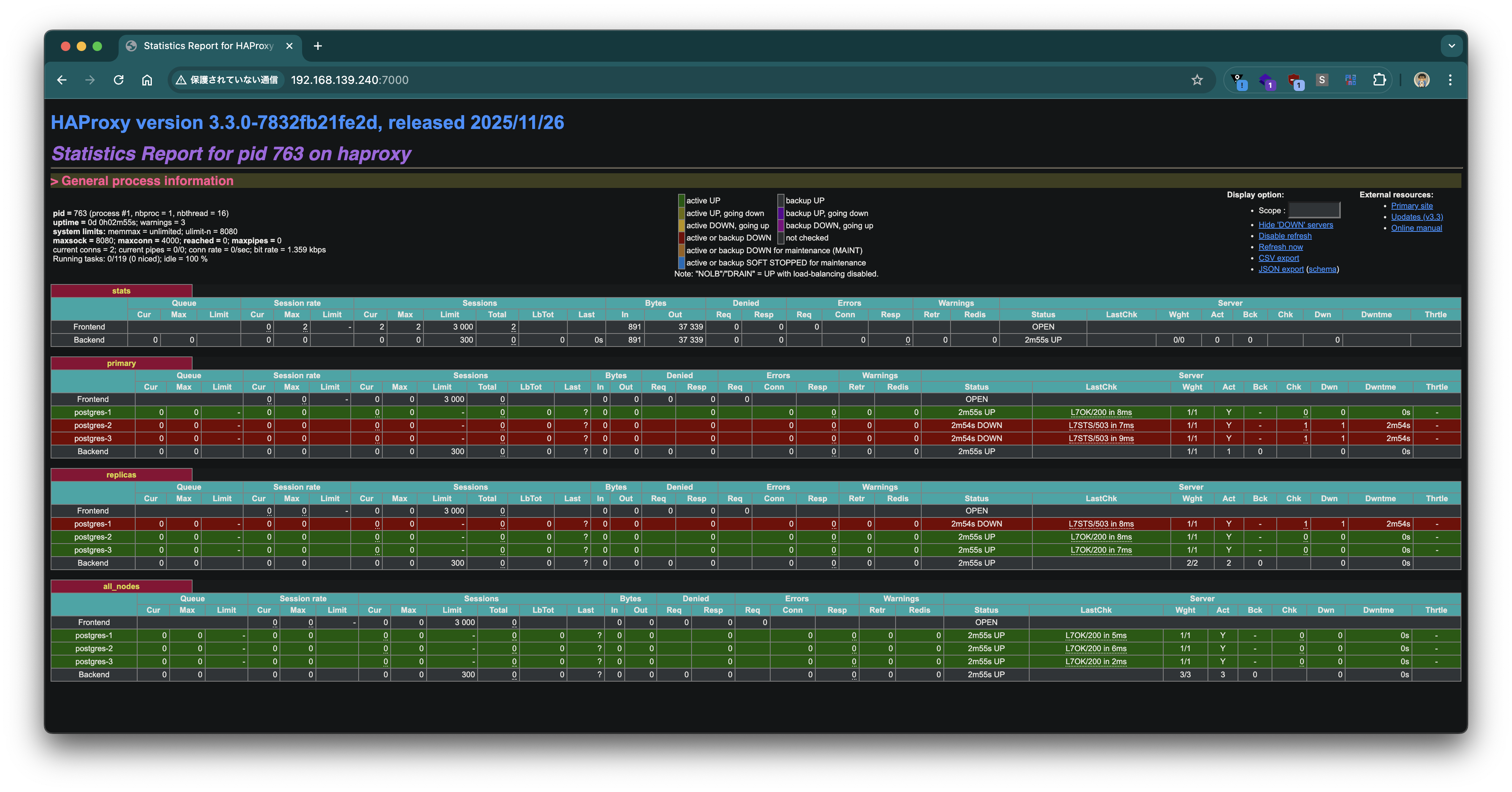
Verifying connections through HAProxy
Connect to the primary port (5000). The connection lands on the Leader (192.168.139.134) and pg_is_in_recovery() returns false.
$ psql postgresql://postgres:postgres@192.168.139.240:5000 -c "SELECT inet_server_addr(), pg_is_in_recovery()"
 inet_server_addr | pg_is_in_recovery
------------------+-------------------
 192.168.139.134  | f
(1 row)
Connect to the replica port (5001). Connections are round‑robin among replicas; pg_is_in_recovery() returns true.
$ psql postgresql://postgres:postgres@192.168.139.240:5001 -c "SELECT inet_server_addr(), pg_is_in_recovery()"
 inet_server_addr | pg_is_in_recovery
------------------+-------------------
 192.168.139.155  | t
(1 row)

$ psql postgresql://postgres:postgres@192.168.139.240:5001 -c "SELECT inet_server_addr(), pg_is_in_recovery()"
 inet_server_addr | pg_is_in_recovery
------------------+-------------------
 192.168.139.141  | t
(1 row)
Connect to the all‑nodes port (5002). Connections are round‑robin across all three nodes.
$ psql postgresql://postgres:postgres@192.168.139.240:5002 -c "SELECT inet_server_addr(), pg_is_in_recovery()"
 inet_server_addr | pg_is_in_recovery
------------------+-------------------
 192.168.139.134  | f
(1 row)

$ psql postgresql://postgres:postgres@192.168.139.240:5002 -c "SELECT inet_server_addr(), pg_is_in_recovery()"
 inet_server_addr | pg_is_in_recovery
------------------+-------------------
 192.168.139.155  | t
(1 row)

$ psql postgresql://postgres:postgres@192.168.139.240:5002 -c "SELECT inet_server_addr(), pg_is_in_recovery()"
 inet_server_addr | pg_is_in_recovery
------------------+-------------------
 192.168.139.141  | t
(1 row)
Replication test
Create a table on the primary and insert data.
psql postgresql://postgres:postgres@192.168.139.240:5000 -c "
CREATE TABLE IF NOT EXISTS organization
(
    organization_id   BIGINT PRIMARY KEY,
    organization_name VARCHAR(255) NOT NULL
);
INSERT INTO organization(organization_id, organization_name) VALUES(1, 'foo');
INSERT INTO organization(organization_id, organization_name) VALUES(2, 'bar');
"
CREATE TABLE
INSERT 0 1
INSERT 0 1
Attempt a write via the replica port (5001); it fails because the connection is read‑only.
psql postgresql://postgres:postgres@192.168.139.240:5001 -c "INSERT INTO organization(organization_id, organization_name) VALUES(3, 'baz')"
ERROR: cannot execute INSERT in a read-only transaction
Read the data through the all‑nodes port (5002); the replicated rows are visible from every node.
$ psql postgresql://postgres:postgres@192.168.139.240:5002 -c "SELECT inet_server_addr(), organization_id,organization_name from organization"
 inet_server_addr | organization_id | organization_name
------------------+-----------------+-------------------
 192.168.139.134  |               1 | foo
 192.168.139.134  |               2 | bar
(2 rows)

$ psql postgresql://postgres:postgres@192.168.139.240:5002 -c "SELECT inet_server_addr(), organization_id,organization_name from organization"
 inet_server_addr | organization_id | organization_name
------------------+-----------------+-------------------
 192.168.139.155  |               1 | foo
 192.168.139.155  |               2 | bar
(2 rows)

$ psql postgresql://postgres:postgres@192.168.139.240:5002 -c "SELECT inet_server_addr(), organization_id,organization_name from organization"
 inet_server_addr | organization_id | organization_name
------------------+-----------------+-------------------
 192.168.139.141  |               1 | foo
 192.168.139.141  |               2 | bar
(2 rows)
Testing Failover
Use Patroni’s switchover command to manually change the Leader and verify failover behavior.
orb shell -m postgres-1
Run the switchover, moving the Leader from postgres-1 to postgres-2.
patronictl -c /etc/patroni/patroni.yaml switchover patroni_cluster
Select the current Primary and the Candidate interactively.
Current cluster topology
+ Cluster: patroni_cluster (7611092906447976897) ----+----+-------------+-----+------------+-----+
| Member     | Host            | Role    | State     | TL | Receive LSN | Lag | Replay LSN | Lag |
+------------+-----------------+---------+-----------+----+-------------+-----+------------+-----+
| postgres-1 | 192.168.139.134 | Leader  | running   |  1 |             |     |            |     |
| postgres-2 | 192.168.139.155 | Replica | streaming |  1 |   0/5053F10 |   0 |  0/5053F10 |   0 |
| postgres-3 | 192.168.139.141 | Replica | streaming |  1 |   0/5053F10 |   0 |  0/5053F10 |   0 |
+------------+-----------------+---------+-----------+----+-------------+-----+------------+-----+
Primary [postgres-1]: postgres-1
Candidate ['postgres-2', 'postgres-3'] []: postgres-2
When should the switchover take place (e.g. 2026-02-26T21:09 )  [now]: now
Are you sure you want to switchover cluster patroni_cluster, demoting current leader postgres-1? [y/N]: y
2026-02-26 20:09:59.02874 Successfully switched over to "postgres-2"
+ Cluster: patroni_cluster (7611092906447976897) --+----+-------------+-----+------------+-----+
| Member     | Host            | Role    | State   | TL | Receive LSN | Lag | Replay LSN | Lag |
+------------+-----------------+---------+---------+----+-------------+-----+------------+-----+
| postgres-1 | 192.168.139.134 | Replica | stopped |    |     unknown |     |    unknown |     |
| postgres-2 | 192.168.139.155 | Leader  | running |  1 |             |     |            |     |
| postgres-3 | 192.168.139.141 | Replica | running |  1 |   0/5054070 |   0 |  0/5054070 |   0 |
+------------+-----------------+---------+---------+----+-------------+-----+------------+-----+
After a short wait, the cluster shows postgres-2 as Leader and postgres-1 demoted to Replica; the timeline (TL) has advanced to 2.
$ patronictl -c /etc/patroni/patroni.yaml list
+ Cluster: patroni_cluster (7611092906447976897) ----+----+-------------+-----+------------+-----+
| Member     | Host            | Role    | State     | TL | Receive LSN | Lag | Replay LSN | Lag |
+------------+-----------------+---------+-----------+----+-------------+-----+------------+-----+
| postgres-1 | 192.168.139.134 | Replica | streaming |  2 |   0/50541B0 |   0 |  0/50541B0 |   0 |
| postgres-2 | 192.168.139.155 | Leader  | running   |  2 |             |     |            |     |
| postgres-3 | 192.168.139.141 | Replica | streaming |  2 |   0/50541B0 |   0 |  0/50541B0 |   0 |
+------------+-----------------+---------+-----------+----+-------------+-----+------------+-----+
The HAProxy statistics page also reflects the change: the new Leader appears UP in the primary backend, and the former Leader appears UP in the replicas backend.
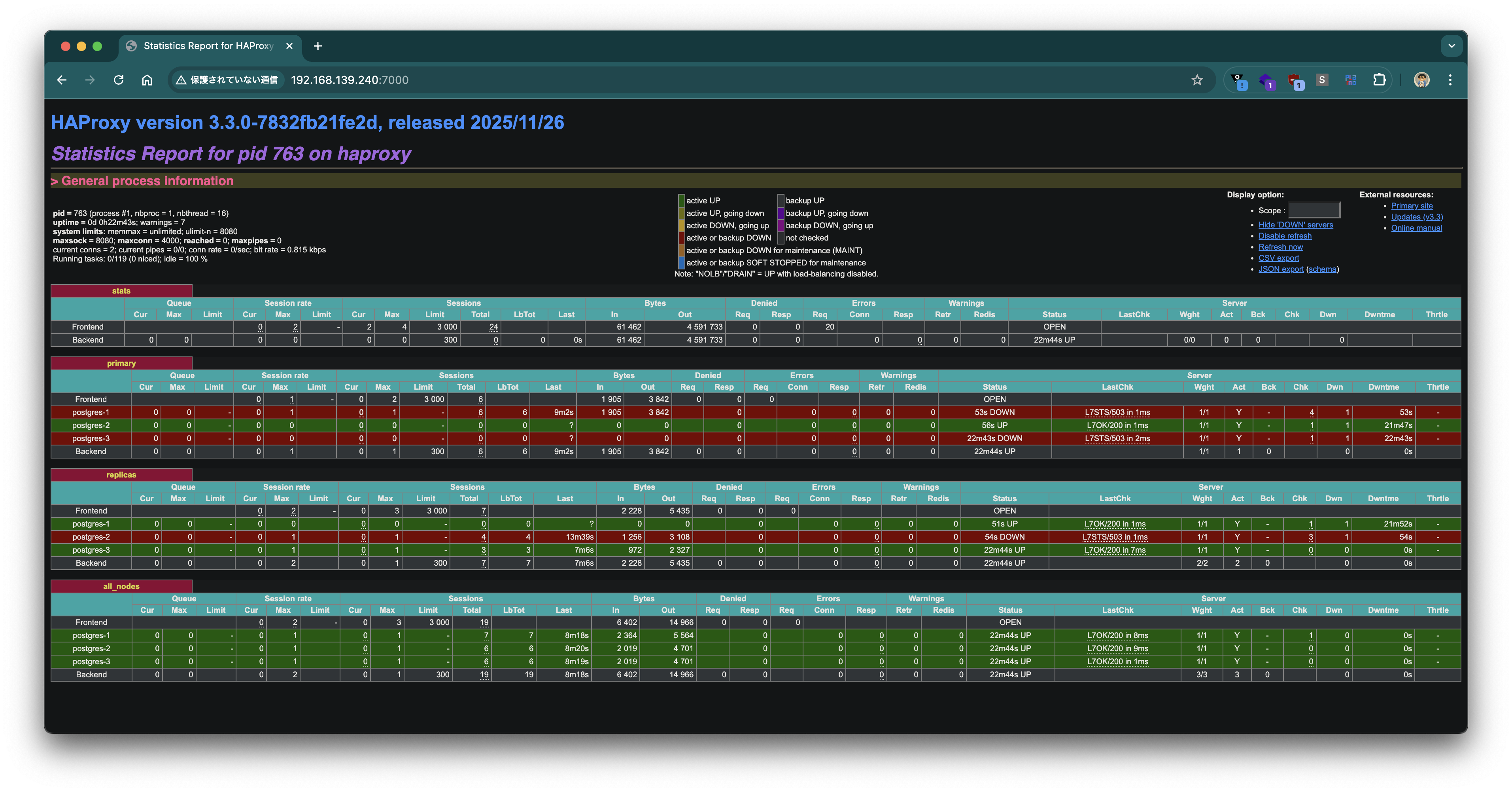
Connections through HAProxy follow the switchover automatically. Port 5000 (primary) now connects to the new Leader postgres-2 (192.168.139.155), while port 5001 (replica) connects to postgres-1 and postgres-3.
$ psql postgresql://postgres:postgres@192.168.139.240:5000 -c "SELECT inet_server_addr(), pg_is_in_recovery()"
 inet_server_addr | pg_is_in_recovery
------------------+-------------------
 192.168.139.155  | f
(1 row)

$ psql postgresql://postgres:postgres@192.168.139.240:5001 -c "SELECT inet_server_addr(), pg_is_in_recovery()"
 inet_server_addr | pg_is_in_recovery
------------------+-------------------
 192.168.139.141  | t
(1 row)

$ psql postgresql://postgres:postgres@192.168.139.240:5001 -c "SELECT inet_server_addr(), pg_is_in_recovery()"
 inet_server_addr | pg_is_in_recovery
------------------+-------------------
 192.168.139.134  | t
(1 row)
Using OrbStack’s Linux Machines, we built VMware Tanzu for Postgres 18.2 on Rocky Linux 9 with a Patroni HA configuration. The patronictl switchover failover test showed that HAProxy automatically detects the new Leader and transparently redirects client connections.